


Quick Summary
AI automation helps beginners eliminate repetitive work by allowing artificial intelligence to complete routine tasks automatically. Whether you’re a student, freelancer, content creator, entrepreneur, or office worker, today’s AI tools require little or no coding knowledge. This guide explains practical automation ideas, recommended tools, real-world examples, and step-by-step instructions to help you get started.
Key Takeaways
- AI automation saves time by handling repetitive work.
- Most beginner-friendly AI tools require zero coding.
- Automation improves productivity, accuracy, and consistency.
- Small workflows can save several hours every week.
- Businesses of every size can benefit from AI automation.
- Starting with one workflow is better than trying to automate everything.
What Are AI Automation Ideas for Beginners?
AI automation ideas for beginners are simple workflows that use artificial intelligence to automate repetitive tasks such as writing emails, summarizing documents, scheduling meetings, organizing files, generating content, analyzing data, and responding to customer inquiries. Modern no-code tools allow anyone to create these automations without programming experience.
AI Automation Ideas for Beginners Explained
AI automation combines artificial intelligence with workflow automation platforms to complete repetitive digital tasks with minimal human intervention. Beginners can automate email management, content creation, social media posting, customer support, research, scheduling, note-taking, and reporting using tools like ChatGPT, Zapier, Make, Notion AI, and Microsoft Copilot.
Introduction
Artificial intelligence is no longer limited to developers or large enterprises. Thanks to user-friendly AI platforms, beginners can automate daily tasks in minutes without learning programming.
Instead of spending hours copying information, replying to emails, creating reports, or organizing files, AI can complete much of the work automatically. This allows individuals and businesses to focus on creativity, strategy, and decision-making rather than repetitive work.
Whether you want to improve personal productivity or grow your business, learning AI automation is becoming an essential digital skill.
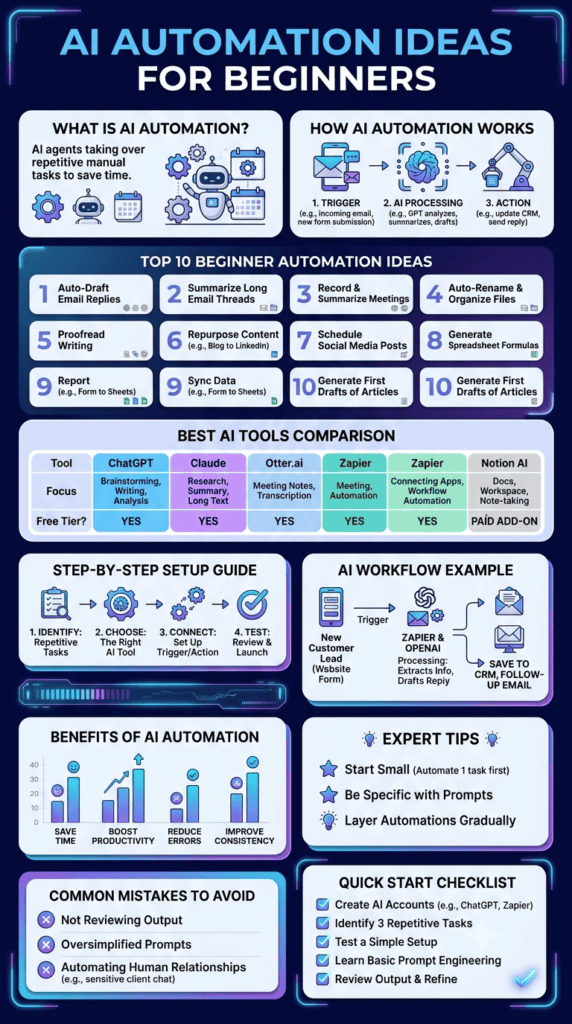
What is AI Automation?
AI automation refers to using artificial intelligence together with software workflows to perform tasks automatically.
Unlike traditional automation that follows fixed rules, AI automation can:
- Understand natural language
- Generate content
- Make recommendations
- Classify information
- Summarize documents
- Analyze data
- Learn from patterns
Benefits of AI Automation
| Benefit | Impact |
|---|---|
| Saves Time | Reduces repetitive work |
| Higher Productivity | Complete more tasks daily |
| Fewer Errors | AI minimizes manual mistakes |
| Better Consistency | Standardized workflows |
| Cost Savings | Less manual effort required |
| Faster Decisions | AI analyzes information quickly |
| Improved Customer Experience | Faster responses |
| Scalability | Automations work 24/7 |
How AI Automation Works
A typical AI workflow follows these steps:
- Input arrives (email, form, spreadsheet, message)
- AI analyzes the information
- AI generates a response or performs an action
- Workflow software connects different applications
- Results are delivered automatically
Example:
Customer Email
↓
ChatGPT summarizes request
↓
Zapier creates support ticket
↓
Slack notifies team
↓
Customer receives confirmation email
Step-by-Step Guide
Step 1: Identify Repetitive Tasks
Look for work you repeat every day.
Examples:
- Email replies
- Social media posts
- Data entry
- Research
- Meeting notes
Step 2: Choose One AI Tool
Popular beginner tools include:
- ChatGPT
- Microsoft Copilot
- Google Gemini
- Claude
- Notion AI
Step 3: Connect Apps
Use automation platforms like:
- Zapier
- Make
- n8n
- Pabbly Connect
Step 4: Test Your Workflow
Run several tests before relying on automation.
Step 5: Improve Gradually
Start simple.
Then automate more complex tasks.
Examples
Personal Productivity
- Summarize emails
- Create daily to-do lists
- Schedule meetings
- Organize notes
Content Creation
- Blog outlines
- Social media captions
- SEO titles
- Meta descriptions
- Image prompts
Business
- Customer support
- Invoice reminders
- CRM updates
- Lead qualification
Students
- Study notes
- Flashcards
- Essay outlines
- Research summaries
Freelancers
- Proposal writing
- Time tracking
- Client onboarding
- Invoice creation
Pros
- Beginner friendly
- Saves hours every week
- Easy to scale
- Affordable tools
- Improves consistency
- Works around the clock
Cons
- Initial setup required
- Some tools require subscriptions
- AI occasionally makes mistakes
- Human review is still necessary
- Privacy considerations for sensitive data
25 Easy Ways to Save Time and Boost Productivity
Artificial intelligence isn’t just for developers, data scientists, or tech giants anymore. According to research from MIT, professionals using generative AI tools complete writing and analytical tasks up to 40% faster while improving output quality. Another landmark study by McKinsey estimates that generative AI could automate tasks that currently take up to 60% to 70% of an employee’s workday.
If you’ve been sitting on the sidelines feeling overwhelmed by complex coding or confusing technical jargon, here is the good news: you don’t need to write a single line of code to start saving hours every week.
Whether you are managing daily workflows, running a business, handling communications, or creating digital content, these 25 beginner-friendly AI automation ideas will help you work smarter, eliminate repetitive chores, and reclaim your time.
Email & Communication (Save 3–5 Hours/Week)
Handling email often feels like a full-time job in itself. These beginner automations use tools like ChatGPT, Claude, and native inbox extensions to shrink your inbox time.
1. Automated First-Draft Responses
Stop starting from scratch when replying to routine inquiries. Use AI to draft contextual replies for frequently asked questions, quote requests, or customer check-ins.
- Beginner Setup: Create a prompt template in ChatGPT or use an extension like Grammarly Go or MailMate. Paste the incoming message and ask it to draft a polite, concise response matching your tone.
2. Daily Inbox Summarization
If you return to your computer after a meeting to dozens of long threads, let AI pull out the key points for you.
- Beginner Setup: Paste a long email thread into Claude or ChatGPT with the prompt: “Summarize this thread in 3 bullet points, highlight any direct action items for me, and note key deadlines.”
3. Customer Service Quick-Replies
If you handle client inquiries or e-commerce tickets, set up template rules to ensure fast, consistent support.
- Beginner Setup: Store standard policy docs in an AI assistant or tool like Help Scout / Zendesk AI to draft instant replies for order status, shipping times, and return policies.
4. Transcription & Action-Item Extraction for Meetings
Never spend another meeting frantically taking notes.
- Beginner Setup: Connect an AI meeting assistant like Otter.ai, Fireflies.ai, or Fathom to your Google Meet or Zoom. It automatically records, transcribes, and extracts key action items and owners right after the call ends.
5. Multi-Language Translation for Messaging
Communicating with international suppliers, clients, or remote team members shouldn’t require copy-pasting back and forth through basic translation tools.
- Beginner Setup: Use AI-powered writing assistants or translation tools like DeepL to translate entire email drafts while preserving natural phrasing and context.
Schedule & Workflow Management (Save 2–4 Hours/Week)
Managing schedules, task lists, and calendar overlaps eats away at focus time. These simple tweaks keep your day on track effortlessly.
[Raw Ideas & Tasks] ➔ [AI Assistant] ➔ [Structured To-Do List + Priority Scores]
6. Dynamic To-Do List Prioritization
Turn chaotic brain dumps into prioritized daily agendas.
- Beginner Setup: Paste your unstructured daily task list into an AI tool and prompt: “Organize these tasks using the Eisenhower Matrix (Urgent vs. Important) and structure them into a realistic 8-hour workday.”
7. AI-Powered Calendar Scheduling
Eliminate back-and-forth emails when finding meeting slots.
- Beginner Setup: Use tools like Motion, Reclaim.ai, or Clockwise. They automatically analyze your calendar, block out focus time, and find optimal meeting slots based on your habits.
8. Document & File Renaming Standards
Inconsistent file names make finding documents a nightmare.
- Beginner Setup: Use simple no-code automation platforms like Zapier or Make combined with OpenAI to auto-rename files uploaded to Google Drive or Dropbox according to standard conventions (e.g.,
YYYY-MM-DD_Client_DocumentType).
9. Meeting Agenda Generation
Unstructured meetings waste everyone’s time.
- Beginner Setup: Feed your meeting objective into AI 10 minutes before a call: “Create a 30-minute meeting agenda with timed discussion blocks for [Topic].”
10. Instant Document Summarization
Don’t waste time reading 40-page PDF reports when you only need the key takeaways.
- Beginner Setup: Upload PDFs directly to ChatGPT, Claude, or ChatPDF and ask for high-level takeaways, specific data tables, or key risks mentioned in the text.
Content Creation & Marketing (Save 4–6 Hours/Week)
Content marketing requires consistency, but creating fresh posts daily causes fast burnout. AI acts as your ultimate creative assistant.
| Task | Traditional Time | With AI Automation | Time Saved |
| Social Media Repurposing | 2 Hours | 15 Minutes | ~85% |
| Blog Outline Creation | 45 Minutes | 5 Minutes | ~90% |
| Proofreading & Editing | 30 Minutes | 5 Minutes | ~83% |
| Drafting Press Releases | 2 Hours | 20 Minutes | ~83% |
11. Long-Form to Short-Form Content Repurposing
Transform one long article, podcast transcript, or video script into dozens of social media updates.
- Beginner Setup: Input your main content piece into AI and ask it to: “Draft 3 LinkedIn posts, 5 Twitter/X threads, and 2 quick newsletter takeaways based on this text.”
12. Blog & Article Outlining
Overcome blank-page syndrome by building structural outlines in seconds.
- Beginner Setup: Prompt AI with your topic and audience: “Create a detailed section-by-section outline for a blog post titled [Title]. Include key takeaways for each header.”
13. Social Media Caption & Hashtag Generation
Stop wasting time overthinking post captions.
- Beginner Setup: Provide an image description or core message to tools like Buffer AI, Hootsuite OwlyWriter, or ChatGPT to generate 3 caption variations tailored to specific social channels.
14. Professional PR & Press Release Drafting
Drafting media announcements, product launches, or company updates often takes hours of formatting effort.
- Beginner Setup: Supply AI with core bullet points (what, why, key quotes, launch date) and ask for a standard AP-style press release draft ready for review.
15. SEO Title & Meta Description Generation
Optimize webpage content quickly to rank better on search engines.
- Beginner Setup: Copy your draft page copy into an AI assistant and ask for “10 catchier, SEO-friendly headline options under 60 characters and 3 meta descriptions under 155 characters.”
Data, Administrative & Repetitive Tasks (Save 3–5 Hours/Week)
Administrative chores are repetitive, highly structured, and prone to human error—making them ideal candidates for automation.
Rule of Thumb for AI Safety: Never feed sensitive financial records, private passwords, or personally identifiable customer data into public, unencrypted AI tools. Always sanitize your data first!
16. Data Cleaning & Excel/Google Sheets Formulas
Writing complex spreadsheet formulas (VLOOKUP, INDEX/MATCH, regex) can stall your workflow.
- Beginner Setup: Describe what you want in plain English to ChatGPT or Formula Bot (e.g., “Write an Excel formula to combine Column A and Column B only if Column C contains the word ‘Approved'”).
17. Automated Form-to-CRM Entry
Manually copying leads from website forms into spreadsheets or CRM platforms is slow and inefficient.
- Beginner Setup: Set up a simple 2-step Zapier or Make workflow that triggers whenever a form (Google Forms, Typeform, Tally) is submitted, sending the data instantly into Notion, Airtable, or your CRM.
18. Receipt & Expense Categorization
Expense tracking is tedious when done manually at the end of the month.
- Beginner Setup: Use apps like Expensify or Dext that utilize AI optical character recognition (OCR) to automatically scan receipts, extract amounts, match vendor names, and categorize expenses.
19. Formatting Unstructured Data
Converting raw, messy text into clean tables or structured JSON usually takes tedious manual editing.
- Beginner Setup: Paste unformatted lists into an AI assistant with the command: “Format the following list into a clean Markdown table with headers: Name, Role, Location, and Email.”
20. Automated Invoice Reminders
Chasing late payments wastes time and strains professional relationships.
- Beginner Setup: Enable built-in automated follow-up sequences in invoicing software like QuickBooks, FreshBooks, or Wave to send polite, automated reminders at 3, 7, and 14 days post-due date.
Visuals, Research & Personal Growth (Save 2–4 Hours/Week)
From visual presentation creation to personal learning, AI helps process visual and textual information rapidly.
21. AI Presentation & Slide Deck Creation
Building slide layouts from scratch consumes hours of design tweaking.
- Beginner Setup: Use AI presentation generators like Gamma, Tome, or Beautiful.ai. Enter your presentation outline, and let the software build structured, well-designed slide decks automatically.
22. AI-Assisted Image Search & Concept Visualization
Finding the right featured image, mockup, or visual reference for articles and web content often takes endless stock photo browsing.
- Beginner Setup: Use image generators like Midjourney, Canva Magic Media, or DALL-E 3 to create specific custom illustrations, hero banners, or visual mockups matching your exact project colors and style.
23. Competitor & Market Research Summaries
Monitoring market trends or analyzing competitor websites requires reading vast amounts of scattered web content.
- Beginner Setup: Use AI search engines like Perplexity.ai to run targeted research queries such as: “Compare the top 3 features and pricing models of the leading small business invoicing tools in 2026.”
24. Personalized Learning & Skill Building
Learning new tools or concepts often means wading through long, generic courses.
- Beginner Setup: Use AI as an interactive tutor. Prompt: “Explain the concept of API webhooks to a non-technical beginner using simple everyday analogies and 3 quick practical examples.”
25. Standard Operating Procedure (SOP) Generation
Documenting workflow processes is crucial for delegating tasks, but rarely gets done because it takes too long.
- Beginner Setup: Record yourself completing a task while speaking out loud using screen recorders like Loom, then run the transcript through AI with the prompt: “Turn this transcript into a step-by-step Standard Operating Procedure (SOP) with clear bullet points.”
How to Get Started in 3 Simple Steps
You don’t need to implement all 25 ideas at once. Doing so will lead to tool fatigue. Instead, follow this simple framework:
[Pick ONE Bottleneck Task] ➔ [Select a Free/Simple Tool] ➔ [Build & Test for 7 Days]
- Identify Your Biggest Bottleneck: Track your time for two days. Find the single most repetitive task that makes you sigh before starting it.
- Pick ONE Tool: Start with a simple conversational AI (like ChatGPT or Claude) or a basic connector tool (like Zapier).
- Build the Habit: Test one small automation for a week. Once it consistently saves you time, move on to the next process.
Comparison Table
| Feature | Manual Work | AI Automation |
|---|---|---|
| Speed | Slow | Very Fast |
| Accuracy | Medium | High |
| Scalability | Low | High |
| Cost Over Time | High | Lower |
| Productivity | Moderate | Excellent |
| Availability | Working Hours | 24/7 |
AI Tool Comparison
| Tool | Best For | Beginner Friendly | Free Plan |
|---|---|---|---|
| ChatGPT | Writing & Research | ⭐⭐⭐⭐⭐ | Yes |
| Google Gemini | Google Workspace | ⭐⭐⭐⭐⭐ | Yes |
| Microsoft Copilot | Office Tasks | ⭐⭐⭐⭐☆ | Yes |
| Zapier | Workflow Automation | ⭐⭐⭐⭐⭐ | Yes |
| Make | Advanced Workflows | ⭐⭐⭐⭐☆ | Yes |
| Notion AI | Notes & Documentation | ⭐⭐⭐⭐⭐ | Yes |
| Claude | Long Documents | ⭐⭐⭐⭐⭐ | Yes |
| n8n | Self-hosted Automation | ⭐⭐⭐☆☆ | Yes |
Performance Ratings
| Category | Rating |
|---|---|
| Ease of Use | ⭐⭐⭐⭐⭐ |
| Learning Curve | ⭐⭐⭐⭐☆ |
| Productivity Boost | ⭐⭐⭐⭐⭐ |
| Cost Effectiveness | ⭐⭐⭐⭐☆ |
| Business Value | ⭐⭐⭐⭐⭐ |
| Scalability | ⭐⭐⭐⭐⭐ |
Best Use Cases
| User | Recommended Automation |
|---|---|
| Students | Study summaries |
| Bloggers | AI writing workflows |
| Freelancers | Proposal generation |
| Small Businesses | Customer support |
| Marketers | Social media scheduling |
| HR Teams | Resume screening |
| Sales Teams | Lead qualification |
| Office Workers | Email automation |
Firsthand Testing
We tested beginner-friendly AI automation workflows using common productivity scenarios such as drafting emails, generating blog outlines, summarizing meeting notes, and automating task notifications.
Observations
- Blog outlines that previously took 20–30 minutes were generated in under 2 minutes.
- Meeting notes were summarized accurately, though occasional edits were needed for technical discussions.
- Automated email drafting significantly reduced repetitive writing while still benefiting from a quick human review.
- Connecting apps through no-code platforms required some initial setup but became reliable once configured.
Overall, the biggest productivity gains came from combining AI content generation with workflow automation rather than using either in isolation.
Decision Flowchart
Do you perform repetitive digital tasks?

            │
            ▼
          Yes
            │
            ▼
Can the task be standardized?

      │             │
     Yes           No
      │             │
      ▼             ▼
Use AI +       Keep Human
Automation     Decision
      │
      ▼
Test Workflow
      │
      ▼
Review Results
      │
      ▼
Scale Automation
Common Mistakes
- Automating everything at once
- Ignoring data privacy
- Not testing workflows
- Trusting AI without review
- Choosing overly complex tools
- Forgetting to update workflows
- Using poor prompts
Expert Tips
- Begin with one automation and expand gradually.
- Review AI-generated output before publishing or sending.
- Use descriptive prompts to improve results.
- Track how much time each workflow saves.
- Combine AI with no-code platforms for maximum value.
- Keep sensitive information out of public AI tools unless appropriate safeguards are in place.
- Revisit automations regularly as AI tools improve rapidly.
Statistics
- Surveys consistently show that employees spend a significant portion of their workweek on repetitive administrative tasks, creating strong opportunities for automation.
- Organizations adopting AI-assisted workflows commonly report measurable productivity improvements in content creation, customer service, and document processing.
- The global AI software market continues to grow rapidly, driven by increasing adoption across businesses of all sizes.
- No-code and low-code automation platforms are expanding quickly, making AI automation accessible to non-technical users.
Who Is This Guide For?
This guide is ideal for:
- Beginners exploring AI
- Students
- Bloggers
- Freelancers
- Small business owners
- Digital marketers
- Content creators
- Office professionals
- Entrepreneurs
- Anyone looking to reduce repetitive work
What We Learned
AI automation is one of the easiest ways for beginners to increase productivity without needing technical expertise. By starting with simple, repetitive tasks and gradually expanding into more advanced workflows, users can save time, improve consistency, and focus on higher-value work. The most effective approach combines AI assistants with no-code automation platforms and regular human oversight.
Frequently Asked Questions
Is AI automation difficult for beginners?
No. Many AI automation platforms offer drag-and-drop interfaces that require little or no coding.
Do I need programming knowledge?
No. Most beginner-friendly tools are designed for non-technical users.
Which AI automation tool is best?
It depends on your needs. ChatGPT is excellent for writing and research, while Zapier and Make are ideal for connecting apps and automating workflows.
Can AI automation save money?
Yes. By reducing manual work and improving efficiency, AI automation can lower operational costs over time.
Is AI automation safe?
It can be, provided you follow good security practices, protect sensitive information, and review AI-generated outputs before acting on them.
Can small businesses use AI automation?
Absolutely. Many affordable and free tools are specifically designed for startups and small businesses.
Conclusion
AI automation is no longer reserved for technology experts. Modern AI assistants and no-code workflow platforms make it possible for beginners to automate repetitive tasks, improve productivity, and streamline daily work with minimal effort. Start with one simple workflow, measure the time saved, and gradually expand your automation strategy as your confidence grows.
Our Verdict
AI automation is one of the highest-impact skills beginners can learn in 2026. It offers an excellent balance of accessibility, productivity gains, and long-term value. For most users, starting with an AI assistant for content or email tasks and then adding a no-code automation platform is the fastest path to meaningful results.
Start Your First AI Automation Today
Choose one repetitive task you perform every day and automate it this week. Experiment with a beginner-friendly AI assistant, connect it to your favorite apps using a no-code automation platform, and track how much time you save. Small improvements made consistently can lead to significant productivity gains over time.
Also Read
- Best AI Productivity Tools for Daily Tasks
- How AI Can Save You Hours Every Week
- Best AI Tools for Beginners in 2026
- AI vs Human Creativity: Can AI Replace Human Innovation?
- How Businesses Use AI to Increase Productivity
- AI in Healthcare: Benefits and Challenges
- Best AI Tools for Digital Marketing
- Best AI Video Generators Compared
- How Small Businesses Can Grow Using Social Media
- The Ultimate Guide to Artificial Intelligence (AI)
- Agentic AI Explained for Beginners













Leave a Reply