

Introduction
What if you could ask questions about your company’s PDFs, manuals, research papers, notes, policies, or internal documentation without repeatedly uploading those files to a public AI chatbot?
That is the idea behind a private document question-and-answer (Q&A) bot.
Instead of manually searching through dozens of documents, you can create a local AI assistant that retrieves relevant information from your document collection and uses a language model to answer questions about it.
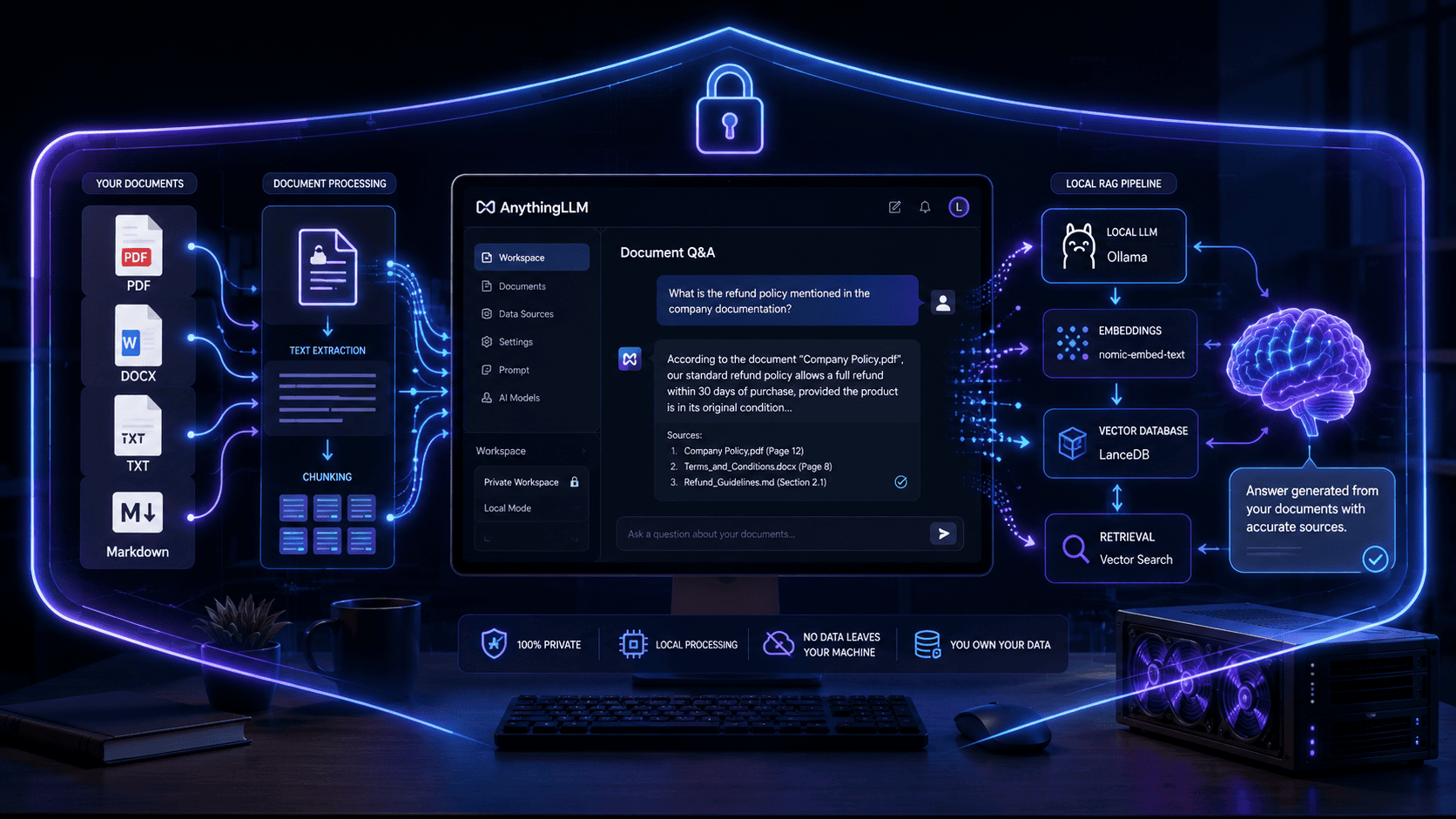
AnythingLLM is particularly useful for this workflow because it provides a document-focused interface around large language models, retrieval-augmented generation (RAG), embeddings, workspaces, and vector databases. Its current documentation supports local model integrations such as Ollama and LM Studio, local embedding options, and local vector databases including LanceDB, Chroma, and Milvus.
The important distinction is that AnythingLLM can be configured for a largely or fully local workflow, but privacy depends on the models, embedding provider, vector database, and other services you configure.
In this guide, you’ll learn how to build a private document Q&A bot using AnythingLLM, connect it to a local AI model, add documents, test retrieval quality, improve answers, and understand when local or cloud components make more sense.
Key Takeaways
- You can use AnythingLLM to create a document-focused AI assistant around your own files.
- A fully local configuration can use a local LLM, local embeddings, and a local vector database.
- Ollama and LM Studio are among the local model integrations documented by AnythingLLM.
- Document Q&A relies on RAG, which retrieves relevant document chunks before generating an answer.
- Local AI provides stronger control over sensitive documents but requires sufficient local hardware.
- Cloud models can provide easier access to powerful models but introduce an external data-processing component.
- Retrieval quality is just as important as model quality for document Q&A.
- You should test answers against the original documents instead of assuming every AI-generated answer is correct.
- For sensitive information, verify every component in the workflow before calling the setup “private.”
At a Glance
| Category | Recommendation |
|---|---|
| Best beginner setup | AnythingLLM + Ollama |
| LLM | A local model compatible with your hardware |
| Embeddings | Local embedding model for maximum privacy |
| Vector database | Local LanceDB, Chroma, or Milvus configuration |
| Document formats | PDF, DOCX, TXT, Markdown, and other supported formats |
| Privacy | Highest when the LLM, embeddings, and vector database all run locally |
| RAM starting point | 16 GB is a practical starting point; 32 GB provides more flexibility |
| GPU | Recommended for faster local model inference, but not always required |
| Internet | Optional for a fully local workflow; depends on your selected components |
| Best for | Private document Q&A, research, manuals, internal knowledge bases, and personal document libraries |
| Difficulty | Beginner to Intermediate |
| Core technology | Retrieval-Augmented Generation (RAG) |
| Main advantage | Ask natural-language questions about your documents while maintaining greater control over your data |
| Main limitation | Local AI performance depends on your hardware and model choice |
Recommended Private Stack
AnythingLLM → Ollama → Local Embeddings → Local Vector Database → RAG → Local LLM → Grounded Answer
Privacy note: A local AnythingLLM setup can keep the core document-Q&A workflow on your machine, but privacy depends on every configured component. Verify your LLM, embedding provider, vector database, integrations, telemetry, and network settings before processing sensitive documents.
What Is a Private Document QA Bot?
A private document Q&A bot is an AI assistant that answers questions using information contained in a controlled collection of documents.
For example, imagine you have:
- 50 company policy PDFs
- Product manuals
- Internal training documents
- Research papers
- Financial reports
- Technical documentation
- Markdown knowledge bases
- TXT notes
- DOCX files
Instead of opening each document individually, you could ask:
“What is the company’s refund policy for enterprise customers?”
The system searches your document collection, retrieves relevant passages, and gives you an answer based on those passages.
This is commonly implemented using Retrieval-Augmented Generation (RAG).
Traditional document search vs AI document Q&A
| Approach | Traditional Search | AI Document Q&A |
|---|---|---|
| Find keywords | Excellent | Good |
| Understand natural-language questions | Limited | Excellent |
| Search multiple documents | Yes | Yes |
| Summarize information | Manual | Automated |
| Compare information | Manual | Automated |
| Source verification | Manual | Can be built into workflow |
| Local/private operation | Possible | Possible |
| Conversational follow-up | Limited | Excellent |
The goal isn’t to replace the original documents.
Instead, the AI becomes a natural-language interface to your document collection.
Why Use AnythingLLM for Private Document Q&A?
Building a RAG system from scratch normally requires several separate components:
- Document parser
- Text chunking system
- Embedding model
- Vector database
- Retrieval system
- LLM
- Chat interface
- Document management
- Prompt configuration
AnythingLLM brings many of these pieces together in one application.
Its current documentation includes separate configuration areas for language models, embedding models, vector databases, document workflows, and RAG.
That makes it particularly useful for people who want to experiment with private document AI without building an entire RAG application from scratch.
The basic architecture
Your Documents
      ↓
Document Extraction
      ↓
Text Chunking
      ↓
Embedding Model
      ↓
Vector Database
      ↓
Relevant Chunks Retrieved
      ↓
Local or Cloud LLM
      ↓
AI Answer
In a fully local configuration, the major AI processing components can run on your own machine.
Prerequisites and Requirements
Before creating the bot, you’ll need four main components:
1. AnythingLLM
Install the AnythingLLM Desktop application or use another supported deployment method.
AnythingLLM also provides self-hosted and cloud deployment options, but this guide focuses primarily on the local/private workflow.
2. A language model
For a local setup, you can use a local model provider such as:
- Ollama
- LM Studio
- Another supported local runtime
AnythingLLM’s current documentation lists both Ollama and LM Studio under its local LLM integrations.
3. An embedding model
Embeddings convert document text into numerical representations that can be searched for semantic similarity.
You can use a local embedding configuration when privacy is the priority.
AnythingLLM currently documents local embedding options as well as cloud embedding providers.
4. A vector database
The vector database stores the embeddings and associated document information used for retrieval.
AnythingLLM currently supports local vector database options including:
- LanceDB
- Chroma
- Milvus
It also documents cloud vector database integrations.
Hardware Requirements for a Local Document QA Bot
The hardware requirement depends heavily on the language model and embedding model you choose.
A lightweight model may run comfortably on a modern computer, while larger models can require substantially more RAM or GPU memory.
Practical hardware guidance
| Hardware | Suggested Use |
| 8 GB RAM | Basic experimentation with small models |
| 16 GB RAM | Good starting point for local AI |
| 32 GB RAM | Better for larger models and bigger document collections |
| Dedicated GPU | Useful for faster local inference |
| 8 GB+ VRAM | More flexibility for local models |
| 12–24 GB+ VRAM | Better for larger models |
These aren’t strict AnythingLLM requirements. Your actual requirements depend on the model, quantization, context length, document size, and workload.
My recommendation
For a serious personal document-Q&A setup, 16 GB RAM is a practical starting point, while 32 GB gives you significantly more flexibility.
If your computer has a capable NVIDIA GPU or another supported acceleration path, local inference can become considerably more responsive.
Step 1: Install AnythingLLM
Start by installing AnythingLLM Desktop for your operating system.
The official documentation provides installation guidance for Windows, macOS, and Linux.
AnythingLLM official documentation
After installation:
- Launch AnythingLLM.
- Complete the initial configuration.
- Open the settings area.
- Configure your language model.
- Configure your embedding model.
- Confirm your vector database configuration.
- Create your first workspace.
The exact interface can change between releases, so use the current labels shown by your installed version rather than relying on screenshots from older tutorials.
Step 2: Connect a Local LLM
The language model is responsible for generating the final answer after relevant document content has been retrieved.
For a private workflow, a local model is generally the simplest way to avoid sending the generated prompt and retrieved document context to an external model API.
Option A: Ollama
Ollama is a popular way to run local language models.
The basic architecture becomes:
AnythingLLM
     ↓
Ollama
     ↓
Local LLM
AnythingLLM’s documentation provides a dedicated Ollama configuration path for local language models.
A typical workflow is:
- Install Ollama.
- Download a model compatible with your hardware.
- Start the Ollama service.
- Open AnythingLLM.
- Select Ollama as the LLM provider.
- Select your installed model.
- Save the configuration.
- Run a simple test query.
Why Ollama is useful
It provides a relatively straightforward way to run local models without building your own inference stack.
Option B: LM Studio
LM Studio is another local model runtime supported by AnythingLLM.
The basic architecture is:
AnythingLLM
     ↓
LM Studio
     ↓
Local LLM
AnythingLLM currently documents LM Studio as a local LLM and embedding integration.
The setup process is broadly:
- Install LM Studio.
- Download a suitable model.
- Load the model.
- Start the local server.
- Configure AnythingLLM to communicate with LM Studio.
- Select the model.
- Test the connection.
Which should you choose?
| Factor | Ollama | LM Studio |
| Local models | Yes | Yes |
| Beginner friendly | Excellent | Excellent |
| GUI-focused workflow | Limited | Strong |
| Local server | Yes | Yes |
| AnythingLLM integration | Yes | Yes |
| Best for | Simple local model serving | Visual model management |
For a straightforward AnythingLLM setup, Ollama is a good default starting point.
Step 3: Configure Embeddings
This is one of the most important parts of the entire system.
Your LLM does not simply “read every document” whenever you ask a question.
Instead, documents are processed and converted into searchable numerical representations called embeddings.
The simplified workflow is:
Document
   ↓
Extract Text
   ↓
Split into Chunks
   ↓
Embedding Model
   ↓
Vectors
   ↓
Vector Database
When you ask a question, the system can then search for document chunks that are semantically related to your query.
AnythingLLM provides both local and cloud embedding configurations.
Local embeddings
If your priority is privacy, use a local embedding model.
Advantages:
- No document text needs to be sent to an embedding API.
- Works without an external embedding service.
- Better control over your data pipeline.
- No per-token embedding API charges.
Disadvantages:
- Uses local CPU/GPU resources.
- Large document collections can take longer to index.
- Model selection can affect retrieval quality.
Step 4: Configure the Vector Database
The vector database is where the searchable representations of your documents are stored.
AnythingLLM currently documents local options such as LanceDB, Chroma, and Milvus.
For a simple desktop experiment, you don’t necessarily need a complicated distributed database.
A local vector database can be enough.
Recommended architecture for beginners
AnythingLLM
   │
   ├── Local LLM
   │      └── Ollama
   │
   ├── Local Embeddings
   │
   └── Local Vector Database
          └── LanceDB / Chroma / Milvus
This keeps the core RAG pipeline on your machine.
Step 5: Create an AnythingLLM Workspace
Now create a dedicated workspace for your document collection.
For example:
Workspace name:
Company Documentation
Or:
Personal Research Library
Or:
Product Manuals
The workspace acts as the logical environment where you can organize your documents and interact with them.
Why workspaces matter
Instead of mixing unrelated information together, create separate workspaces for different knowledge domains.
For example:
AnythingLLM
│
├── Product Manuals
├── Company Policies
├── Research Papers
├── Marketing Documentation
└── Personal Knowledge Base
This can make retrieval more focused and reduce the chance of unrelated documents influencing an answer.
Step 6: Upload Your Documents
Now add the documents you want the AI to use.
Depending on your AnythingLLM configuration and version, supported document workflows can include formats such as:
- DOCX
- TXT
- Markdown
- Other supported text/document formats
AnythingLLM provides dedicated documentation around using documents in chat and RAG.
Start with a small test collection
Don’t immediately upload 500 documents.
Start with:
- 3–5 PDFs
- A few TXT files
- One or two Markdown documents
This makes troubleshooting much easier.
Once retrieval works correctly, gradually expand the collection.
Step 7: Understand What Happens When You Upload a Document
Uploading a document doesn’t simply place the entire file into the model’s context window.
A simplified RAG pipeline looks like this:
                  DOCUMENT
                     │
                     ▼
              Text Extraction
                     │
                     ▼
                Chunking
                     │
                     ▼
              Embedding Model
                     │
                     ▼
              Vector Database
                     │
              ┌──────┴──────┐
              │             │
          User Query        │
              │             │
              ▼             │
        Query Embedding     │
              │             │
              └──────┬──────┘
                     ▼
             Similarity Search
                     │
                     ▼
             Relevant Chunks
                     │
                     ▼
                   LLM
                     │
                     ▼
                  Answer
This is why retrieval quality matters so much.
Even an excellent LLM can produce a poor answer if the relevant document passage isn’t retrieved.
Step 8: Ask Your First Document Question
Once your documents are indexed, ask a question whose answer you already know.
For example:
“According to the employee handbook, how many days of annual leave are provided?”
Then compare the response against the original document.
Next, try a slightly more complex question:
“What are the conditions for carrying unused annual leave into the following year?”
Finally, test a cross-document question:
“How do the leave policies in these two documents differ?”
This gives you three different retrieval tests:
- Direct retrieval
- Semantic retrieval
- Multi-document reasoning
Step 9: Verify the Retrieved Sources
Never evaluate a document Q&A system solely by asking:
“Does the answer sound correct?”
Instead, verify:
- Which document was retrieved?
- Which passage was retrieved?
- Does the passage actually support the answer?
- Did the model introduce information not present in the document?
- Did it confuse two similar documents?
- Did it omit an important qualification?
This distinction is critical.
A useful testing rule
An answer that sounds convincing is not necessarily a correct answer.
For high-stakes documents, always compare the AI response with the original source.
Practical Testing: How Accurate Is Your Document QA Bot?
This is the section I would emphasize strongly for E-E-A-T.
Create a small evaluation dataset.
| Test | Question | Expected Result |
| Fact retrieval | What is the refund period? | Correct number/date |
| Definition | What does “Enterprise Plan” mean? | Correct definition |
| Location | Where is the policy described? | Correct document/section |
| Comparison | How do Plan A and Plan B differ? | Correct comparison |
| Negative test | What does the document say about X? | Should admit when X isn’t available |
| Multi-document | Which document contains the latest policy? | Correct source |
The hallucination test
Ask a question about something that definitely doesn’t exist in the document.
For example:
“What is the company’s policy for international relocation?”
If the document doesn’t contain this information, a trustworthy system should avoid inventing a detailed policy.
This is one of the most valuable tests you can perform.
Best Practices for Better Document Q&A
1. Clean your documents before ingestion
Poor source documents often produce poor retrieval.
Before uploading:
- Remove unnecessary duplicate text.
- Use descriptive headings.
- Avoid scanned PDFs when possible.
- Run OCR on image-only documents.
- Keep tables structured where possible.
- Remove irrelevant pages.
- Separate unrelated topics into different documents.
Why this matters
RAG systems can only retrieve what they can properly extract and index.
A beautifully formatted PDF for humans may still be difficult for an extraction pipeline if its content is primarily images, unusual layouts, or poorly structured tables.
2. Use meaningful document names
Instead of:
document_final_v8.pdfuse:
Employee_Leave_Policy_2026.pdfClear filenames make document management and troubleshooting easier.
3. Avoid mixing unrelated knowledge
Don’t put:
- HR policies
- Product manuals
- Marketing plans
- Personal notes
- Research papers
into one giant knowledge collection unless there is a good reason.
Separate workspaces or clearly organized document collections can improve the signal-to-noise ratio.
4. Keep temperature under control
Temperature affects how deterministic or creative the generated response is.
For factual document Q&A, you generally want consistency rather than creativity.
A lower temperature can therefore be preferable for factual workflows, although the exact setting depends on the model and AnythingLLM configuration.
Don’t assume that lowering temperature automatically fixes hallucinations.
The quality of retrieval and the quality of the source material remain fundamental.
5. Pay attention to chunking
RAG systems break documents into smaller pieces before indexing them.
If chunks are too small:
- Important context may be separated.
- Definitions can become disconnected from explanations.
- Tables may lose surrounding context.
If chunks are too large:
- Retrieval can become less precise.
- More irrelevant text may be passed to the model.
- Context consumption can increase.
The optimal configuration depends on document structure and model behavior.
Practical approach
Don’t change chunking parameters immediately.
First establish a baseline using a small test dataset.
Then change one variable at a time and repeat your evaluation questions.
6. Test retrieval separately from generation
This is an advanced but important principle.
Suppose the answer is wrong.
There are at least two possibilities:
Problem A — Retrieval failure
The correct passage was never retrieved.
Problem B — Generation failure
The correct passage was retrieved, but the LLM misunderstood or ignored it.
These require different solutions.
If retrieval is wrong, changing the LLM may not solve the problem.
Local vs Cloud Embeddings in AnythingLLM
Embeddings are particularly important for privacy because your documents must be processed to create their searchable representations.
AnythingLLM supports both local and cloud embedding configurations.
| Factor | Local Embeddings | Cloud Embeddings |
| Privacy control | Excellent | Depends on provider |
| Internet required | No, for local processing | Yes |
| Hardware demand | Higher | Lower |
| Setup complexity | Moderate | Usually easier |
| API cost | None per request | May apply |
| Processing speed | Depends on hardware | Depends on provider/network |
| Data leaves device | Can avoid this | Potentially yes |
| Best for | Sensitive documents | Convenience and scale |
Which should you choose?
Choose local embeddings when:
- Documents are confidential.
- You want maximum control.
- Offline operation matters.
- You have adequate hardware.
Choose cloud embeddings when:
- Convenience is more important.
- Your organization’s policy permits external processing.
- You don’t want to manage local embedding models.
- You need a managed service.
Fully Local vs Hybrid AnythingLLM
There isn’t only one way to build the system.
Fully local
Documents
   ↓
Local Embeddings
   ↓
Local Vector DB
   ↓
Local LLM
   ↓
Answer
This is the strongest configuration for minimizing external data processing.
Hybrid
Documents
   ↓
Local Vector DB
   ↓
Retrieved Context
   ↓
Cloud LLM
   ↓
Answer
This can provide access to powerful cloud models, but the retrieved document context may be sent to the external model provider.
Fully cloud-oriented
Documents
   ↓
Cloud Embeddings
   ↓
Cloud Vector DB
   ↓
Cloud LLM
   ↓
Answer
This is usually the easiest to scale but provides less local control.
The key privacy lesson
“Using AnythingLLM” and “keeping everything offline” are not automatically the same thing.
Your privacy level depends on the complete pipeline.
How to Keep the Document QA Bot Private
If privacy is the main reason you’re building this system, audit every component.
Check:
- LLM provider
- Embedding provider
- Vector database
- Document storage
- External APIs
- Plugins or integrations
- Browser tools
- Logging
- Telemetry
- Network connections
- Backups
- Team access
AnythingLLM’s documentation includes dedicated areas for privacy/data handling, security, logs, and where desktop data is stored.
Important distinction
Don’t write:
“AnythingLLM guarantees that your data never leaves your computer.”
That statement is too broad.
A more accurate statement is:
A properly configured local AnythingLLM deployment can keep the core document-Q&A workflow on your own machine, but you should verify every configured provider and integration before processing sensitive information.
That wording is much safer and more technically accurate.
Privacy Checklist
Before putting confidential documents into your system:
- Confirm the LLM is local.
- Confirm the embedding model is local.
- Confirm the vector database is local.
- Check whether any cloud APIs are enabled.
- Review AnythingLLM privacy and data-handling settings.
- Check logs and telemetry configuration.
- Disable integrations you don’t need.
- Avoid exposing the interface publicly.
- Protect the computer running the system.
- Encrypt backups containing sensitive documents.
- Test the setup with non-sensitive documents first.
Common Problems and Troubleshooting
Problem 1: The AI gives incorrect answers
Possible causes:
- Poor document extraction
- Incorrect retrieval
- Bad chunking
- Ambiguous question
- Weak local model
- Conflicting documents
Solution
Test retrieval with questions whose answers are explicitly present in the source document.
Problem 2: The AI says it cannot find information
Possible causes:
- The document wasn’t indexed correctly.
- The relevant chunk wasn’t retrieved.
- The question uses terminology different from the document.
- The document is image-based.
Solution
Try a more direct question and inspect whether the relevant content is actually searchable.
Problem 3: Scanned PDFs don’t work well
A scanned PDF may essentially contain images rather than machine-readable text.
Solution
Use OCR before ingestion or use a workflow capable of extracting text from the document.
Problem 4: Answers are slow
Local inference speed depends heavily on:
- CPU
- GPU
- RAM
- Model size
- Quantization
- Context length
- Document retrieval
- Number of concurrent requests
Solution
Start with a smaller model and establish a performance baseline.
Problem 5: The model hallucinates
Possible causes:
- Retrieved context is insufficient.
- The model is overconfident.
- The prompt doesn’t instruct it to stay grounded.
- The source material is ambiguous.
Solution
Use a system instruction such as:
Answer using the provided document context. If the information is not available in the documents, clearly state that you cannot find it rather than inventing an answer.
Then test it with deliberately unanswerable questions.
A Simple Grounded-Q&A Prompt
You can use a system instruction along these lines:
You are a document question-answering assistant.

Answer questions using the provided document context.

Rules:
1. Prefer information from the retrieved documents.
2. Do not invent facts that are not supported by the documents.
3. If the answer cannot be found, say so clearly.
4. Distinguish between facts and reasonable interpretation.
5. When possible, identify the document or section supporting the answer.
6. Preserve important dates, numbers, names, and conditions exactly.
This does not eliminate hallucinations, but it establishes a useful behavioral constraint.
AnythingLLM vs Cloud AI for Document Q&A
You don’t always need a local solution.
The right architecture depends on your requirements.
| Factor | Local AnythingLLM | Cloud AI |
| Privacy control | High | Provider-dependent |
| Internet dependency | Low/optional depending on setup | Usually required |
| Initial setup | Higher | Lower |
| Hardware requirement | Higher | Lower |
| Model choice | Local models | Large hosted models |
| Scaling | Hardware-dependent | Generally easier |
| Cost model | Hardware + electricity | Subscription/API usage |
| Maintenance | More responsibility | Less infrastructure work |
| Offline capability | Possible | Usually limited |
| Sensitive documents | Strong fit | Requires provider review |
Local AnythingLLM is better when:
- You work with confidential information.
- You want local/offline AI.
- You have suitable hardware.
- You want control over the AI stack.
- You are comfortable managing local models.
Cloud AI is better when:
- You want the simplest setup.
- You need access to very large hosted models.
- Your organization permits cloud processing.
- You need easier scaling.
- Local hardware isn’t sufficient.
Who Should Build a Private Document QA Bot?
This setup is particularly useful for:
Developers
Use it as a local knowledge assistant for:
- API documentation
- Code documentation
- Project specifications
- Architecture documents
Researchers
Ask questions across:
- Research papers
- Technical reports
- Literature collections
- Notes
Small businesses
Create assistants around:
- SOPs
- Employee policies
- Product documentation
- Internal training material
Students
Use it to interact with:
- Lecture notes
- Textbooks
- Study material
- Research papers
Technical teams
Build searchable knowledge bases from:
- Troubleshooting guides
- Installation manuals
- Engineering documentation
- Internal technical references
Scaling the System for a Small Team
Once your personal document QA bot works, you can move toward a team knowledge assistant.
A possible progression is:
Stage 1
Personal Desktop
       ↓
Stage 2
Organized Workspaces
       ↓
Stage 3
Self-Hosted AnythingLLM
       ↓
Stage 4
Central Document Repository
       ↓
Stage 5
Authenticated Team Access
       ↓
Stage 6
Monitored Internal AI Knowledge Base
AnythingLLM also provides self-hosted deployment options, making it possible to move beyond a single desktop installation when your requirements grow.
However, team deployment introduces additional concerns:
- Authentication
- Authorization
- Document permissions
- Network security
- Backups
- Monitoring
- Audit logging
- Data retention
Don’t treat a personal local installation and a production team knowledge system as the same security environment.
Recommended Private Document QA Architecture
For someone starting from scratch, I recommend this architecture:
             ┌─────────────────────┐
             │   Private Documents │
             │ PDF / DOCX / TXT    │
             │ Markdown / etc.     │
             └──────────┬──────────┘
                        │
                        ▼
             ┌─────────────────────┐
             │     AnythingLLM     │
             │      Workspace      │
             └──────────┬──────────┘
                        │
             ┌──────────▼──────────┐
             │  Local Embeddings   │
             └──────────┬──────────┘
                        │
                        ▼
             ┌─────────────────────┐
             │  Local Vector DB    │
             │ LanceDB / Chroma /  │
             │ Milvus              │
             └──────────┬──────────┘
                        │
                   Retrieval
                        │
                        ▼
             ┌─────────────────────┐
             │     Local LLM       │
             │   Ollama / LM       │
             │       Studio        │
             └──────────┬──────────┘
                        │
                        ▼
             ┌─────────────────────┐
             │    Grounded Answer  │
             └─────────────────────┘
This architecture minimizes dependence on external AI services while keeping the system relatively approachable.
How to Evaluate Your Final Setup
Before calling your document QA bot production-ready, run five categories of tests.
Test 1 — Accuracy
Does the answer match the source?
Test 2 — Retrieval
Was the correct passage retrieved?
Test 3 — Negative questions
Does the system refuse to invent information?
Test 4 — Cross-document questions
Can it distinguish between multiple documents?
Test 5 — Privacy
Have you verified that the configured components don’t send sensitive content to external services?
A useful evaluation table is:
| Category | Pass Condition |
| Retrieval | Correct source passage retrieved |
| Accuracy | Answer matches source |
| Grounding | No unsupported claims |
| Negative test | Doesn’t invent missing information |
| Privacy | No unexpected external processing |
| Speed | Acceptable response time |
| Stability | Repeated queries produce consistent results |
Frequently Asked Questions
Is AnythingLLM completely private?
Not automatically.
AnythingLLM supports local and cloud LLM, embedding, and vector database configurations. A privacy-focused deployment should use local components where appropriate and verify all enabled integrations.
Can I use AnythingLLM without sending documents to OpenAI?
Yes, you can configure a local workflow using a local LLM and local embedding model rather than relying on OpenAI APIs.
However, verify the complete configuration because other enabled integrations can change the data flow.
Can I use Ollama with AnythingLLM?
Yes. AnythingLLM’s documentation includes Ollama as a local LLM integration.
Can I use LM Studio with AnythingLLM?
Yes. LM Studio is also documented as a local LLM integration, as well as a local embedding option.
What vector database does AnythingLLM use?
AnythingLLM supports multiple vector database configurations. Its documented local options include LanceDB, Chroma, and Milvus.
Can AnythingLLM answer questions about PDFs?
Yes, AnythingLLM provides document and RAG functionality designed to allow users to interact with document content.
Is a local LLM always better than a cloud LLM?
No.
Local models provide greater control and can improve privacy, but cloud models may provide stronger capabilities or easier scaling depending on the task.
Does RAG eliminate hallucinations?
No.
RAG can improve grounding by retrieving relevant source material, but the model can still misunderstand, ignore, or incorrectly interpret retrieved information.
How many documents can I upload?
There isn’t one universal number that guarantees good performance.
The practical limit depends on your hardware, document sizes, embedding configuration, vector database, retrieval configuration, and model.
Start small, evaluate retrieval quality, and scale gradually.
Practical Tips for Your First AnythingLLM Project
If this is your first private document Q&A project, don’t try to build the perfect system immediately.
Use this progression:
Phase 1 — Proof of concept
- Install AnythingLLM.
- Connect Ollama or LM Studio.
- Add a local embedding model.
- Upload 3–5 documents.
- Test 10 questions.
Phase 2 — Retrieval optimization
- Test different document structures.
- Improve document quality.
- Review failed questions.
- Experiment with chunking.
- Compare model responses.
Phase 3 — Privacy validation
- Check every configured provider.
- Review network-dependent components.
- Review logs and telemetry settings.
- Remove unnecessary integrations.
Phase 4 — Scale
- Organize workspaces.
- Add more documents.
- Create an evaluation dataset.
- Introduce access controls if needed.
- Consider self-hosting for team access.
Conclusion
Creating a private document Q&A bot doesn’t require building a RAG system from scratch.
With AnythingLLM + a local LLM + local embeddings + a local vector database, you can create a practical AI assistant that lets you interact with your own documents while maintaining much greater control over where your data is processed.
The most important lesson, however, is that privacy is an architecture decision, not simply a software feature.
If you connect AnythingLLM to a cloud LLM or cloud embedding service, your data flow changes. If you use local models and local storage throughout the pipeline, you can create a much more private setup.
For beginners, the best approach is to start small:
AnythingLLM → Ollama → local embeddings → local vector database → 3–5 test documents → systematic Q&A testing.
Once you can reliably retrieve the correct passages and generate grounded answers, you can expand the same architecture into a larger personal knowledge base or even a self-hosted internal AI assistant for a small team.
The goal isn’t simply to create a chatbot that can answer questions.
The goal is to create an AI system that can answer questions from your documents, show where the information comes from, avoid inventing missing information, and keep sensitive data under your control.
Also Read
- How to Optimize Your Website for ChatGPT, Perplexity & AI Search (GEO Guide)
- How to Rank Local Indian Businesses on Google Maps Using AI
- How to Create Bulk Social Media Graphics with Canva and AI Prompts
- Copy-Paste AI Prompt Frameworks That Write High-Converting Email Sequences
- 5 Simple AI Workflows to Automate Daily Admin Tasks
- Make vs n8n for AI Automation
- 25 Real-World AI Workflows That Save 10+ Hours Every Week
- How to Extract Structured Data from PDFs Using Local LLMs
- Best AI Productivity Tools for Daily Tasks
- How to Build an AI Assistant Without Code
- Best Free Open-Source AI Automation Tools
- Local AI vs Cloud AI: Cost, Speed, and Privacy Comparison
- Best AI Voice Generator Tools
- Weekly Content Creation Workflow Deep Dive & AI Templates
- Top 5 Open-Source AI Models Outperforming GPT-4 and Rivaling GPT-5 on Select Tasks
- How to Set Up Open WebUI





Leave a Reply