

Introduction
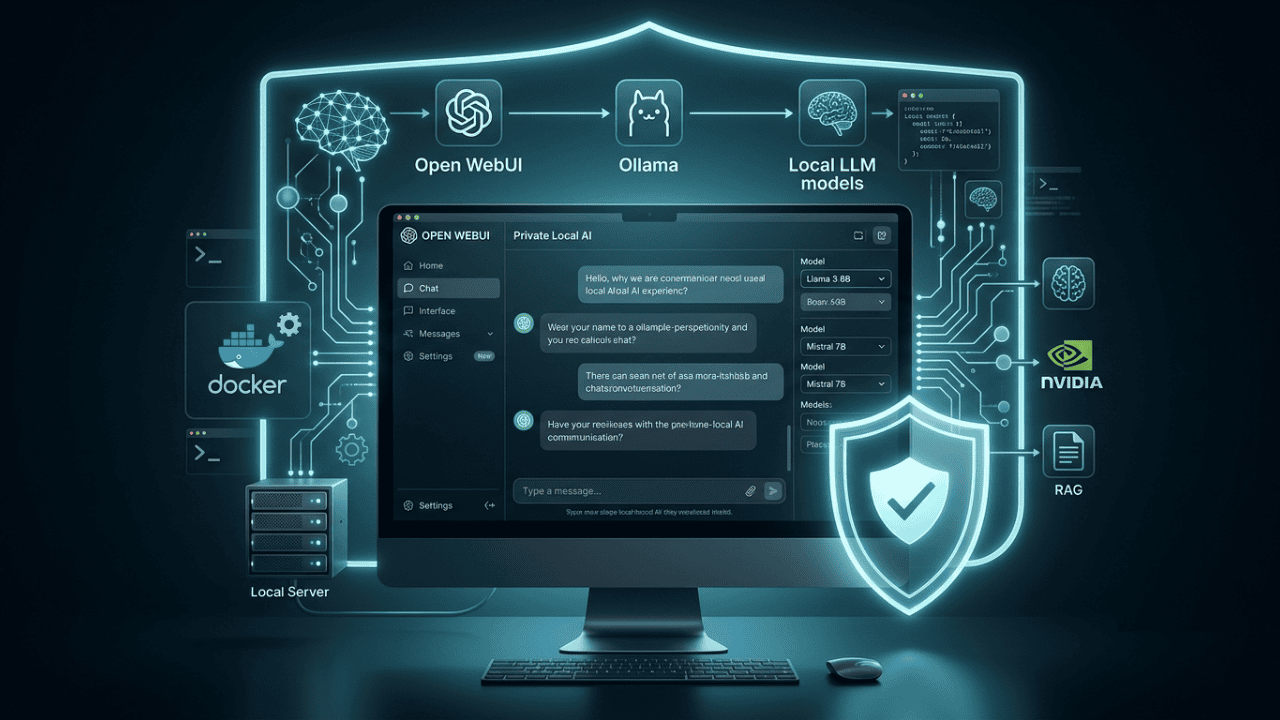
Running AI locally is becoming increasingly attractive for people who want more control over their data, models, and infrastructure. Instead of sending every conversation to a cloud-based AI service, you can run compatible AI models on your own computer and interact with them through a private web interface.
Open WebUI makes this experience much easier.
Open WebUI is a self-hosted AI platform designed to provide a browser-based interface for local and cloud AI models. It can work with Ollama, OpenAI-compatible APIs, llama.cpp, vLLM, and other providers, allowing users to build a flexible AI environment around their own hardware and infrastructure.
In this guide, you’ll learn how to install Open WebUI, connect it to Ollama, download a local AI model, start chatting, configure privacy settings, and troubleshoot common problems.
Quick answer: The easiest way to create a private local AI chat environment is to install Ollama for running local models and Open WebUI for the browser-based interface. Docker is the officially recommended installation method for most Open WebUI users.
Open WebUI Setup: At a Glance
| At a Glance | Details |
|---|---|
| Best For | Private, self-hosted local AI chat |
| Primary Interface | Open WebUI |
| Local AI Backend | Ollama |
| Deployment Method | Docker |
| Operating Systems | Windows, macOS, Linux |
| GPU Required? | No — optional, but recommended for faster inference |
| Internet Required? | Mainly for initial installation, downloads, and updates |
| Difficulty | Beginner to Intermediate |
| Local Access | http://localhost:3000 |
| Supports Multiple Models? | Yes |
| Supports RAG/Documents? | Yes |
| Best For | Developers, researchers, AI enthusiasts, and privacy-conscious users |
Quick takeaway: For beginners, the simplest setup is Ollama + Open WebUI + Docker. Ollama runs the local AI models, while Open WebUI provides the browser-based chat interface.
What Is Open WebUI?
Open WebUI is a self-hosted AI interface that lets you interact with AI models through a ChatGPT-style web interface.
Instead of using a command-line interface to communicate with a local model, Open WebUI provides a graphical environment where you can manage conversations, models, documents, settings, and other AI functionality.
The platform is designed to run locally and can operate entirely offline when configured with local AI models. It also supports connections to external providers, making it possible to use both local and cloud models from the same interface.
Open WebUI vs. Ollama
These two tools are often mentioned together, but they serve different purposes.
| Tool | Main Purpose | Typical Role |
|---|---|---|
| Ollama | Runs and manages local AI models | AI model backend |
| Open WebUI | Provides a web interface for AI models | Chat and management interface |
| Docker | Runs applications in isolated containers | Installation/deployment layer |
| Local AI Model | Performs the actual inference | AI engine |
A simple way to understand the relationship is:
Your computer → Ollama → AI model → Open WebUI → Browser
Ollama manages and serves the models, while Open WebUI provides the user-friendly interface on top of them.
Why Use Open WebUI for Local AI?
There are several reasons to build a local AI chat environment.
1. Greater Data Control
When you run a model locally, your conversations can remain on infrastructure you control.
This can be particularly useful when experimenting with:
- Private documents
- Internal notes
- Source code
- Business information
- Research material
- Personal knowledge bases
However, local hosting does not automatically guarantee security. If you expose Open WebUI to the internet without proper authentication, encryption, firewall rules, or access controls, your data could still be at risk.
2. No Per-Message API Costs
Once your local hardware is configured, you can run compatible models without paying a cloud API provider for every request.
You still have hardware, electricity, storage, and maintenance costs, but your usage is no longer directly tied to API billing.
3. Offline AI
Open WebUI is designed to support completely offline operation when paired with local models.
This makes it useful in situations where internet connectivity is limited or where users prefer not to send prompts to external services.
4. Multiple Models
You don’t have to commit to one model.
With Ollama and Open WebUI, you can install multiple models and switch between them depending on the task.
For example:
| Task | Potential Model Type |
| General chat | General-purpose LLM |
| Coding | Code-focused model |
| Summarization | Instruction-tuned model |
| Research | Larger reasoning model |
| Lightweight tasks | Smaller model |
| Local document analysis | Model compatible with your hardware |
The exact model you choose should depend on your hardware, context requirements, language needs, and the type of work you perform.
5. Browser-Based Interface
Instead of interacting with Ollama exclusively through the terminal, Open WebUI gives you a convenient browser interface.
The default Docker installation exposes Open WebUI on port 3000, allowing you to access it at:
http://localhost:3000
The official documentation currently recommends Docker for most users.
What You Need Before Installing Open WebUI
Before starting, you’ll need:
- A Windows, macOS, or Linux computer
- Docker Desktop or Docker Engine
- Ollama if you want to run local models
- Enough RAM for the model you intend to use
- Enough disk space for model files
- Optional GPU for faster inference
Open WebUI currently supports multiple installation approaches, including Docker, Python, Kubernetes, and a desktop application. Docker is the simplest choice for most beginners.
How the Local AI Setup Works
The architecture is relatively simple.
                    Your Computer
                         │
                         ▼
                  ┌─────────────┐
                  │ Open WebUI  │
                  │ Web Interface│
                  └──────┬──────┘
                         │
                         ▼
                  ┌─────────────┐
                  │   Ollama    │
                  │ Model Server │
                  └──────┬──────┘
                         │
              ┌──────────┼──────────┐
              ▼          ▼          ▼
           Model A    Model B    Model C
              │          │          │
              └──────────┴──────────┘
                         │
                         ▼
                    AI Response
Open WebUI acts as the interface, while Ollama handles local model serving.
Step 1: Install Ollama
If you want to run AI models locally, start by installing Ollama.
Ollama provides a straightforward way to download and run compatible AI models on your computer.
After installation, verify that Ollama is working.
Open your terminal or command prompt and run:
ollama --versionIf Ollama is installed correctly, you should see its version information.
You can then download a model.
For example:
ollama pull llama3You can use another model supported by your Ollama installation instead.
After downloading the model, test it:
ollama run llama3If the model responds, your local AI backend is working.
Tip: Don’t automatically choose the largest available model. A smaller model that runs comfortably on your hardware can provide a much better experience than a larger model that constantly runs out of RAM or VRAM.
Step 2: Install Docker
The next step is installing Docker.
Docker allows Open WebUI to run inside a container without requiring you to manually configure every application dependency.
For beginners, Docker Desktop is usually the easiest option on Windows and macOS.
Linux users can install Docker Engine and Docker Compose using the appropriate instructions for their distribution.
Once Docker is installed, verify it:
docker --versionYou can also verify Docker is running:
docker infoIf Docker returns system information without an error, you’re ready to continue.
Step 3: Install Open WebUI with Docker
The official Open WebUI documentation recommends Docker for most users.
If Ollama is already installed on your computer, you can run:
docker run -d \
  -p 3000:8080 \
  --add-host=host.docker.internal:host-gateway \
  -v open-webui:/app/backend/data \
  --name open-webui \
  --restart always \
  ghcr.io/open-webui/open-webui:main
On systems where the multiline command is inconvenient, you can use a single line:
docker run -d -p 3000:8080 --add-host=host.docker.internal:host-gateway -v open-webui:/app/backend/data --name open-webui --restart always ghcr.io/open-webui/open-webui:mainThe persistent volume is important because it stores Open WebUI’s application data. Without persistent storage, recreating the container could result in lost application data.
Step 4: Open Open WebUI
After the container starts, open your browser.
Go to:
http://localhost:3000You should see the Open WebUI interface.
Create your account when prompted.
For a personal installation, keep the interface accessible only from your local machine unless you have deliberately configured secure remote access.
Step 5: Connect Open WebUI to Ollama
If Ollama is running directly on your computer while Open WebUI is running inside Docker, Open WebUI may need to communicate with Ollama through the host address.
For Docker-based installations, the commonly used connection address is:
http://host.docker.internal:11434The official Open WebUI documentation specifically identifies this address for Docker users when Ollama is running on the host machine.
Inside Open WebUI, navigate to the administration settings and locate the connection settings for Ollama.
Depending on your Open WebUI version, the interface may change, but the general process is:
- Open Admin Settings.
- Go to Connections.
- Locate Ollama.
- Enter the Ollama API URL if it isn’t automatically detected.
- Save the configuration.
- Check whether your installed models appear.
Open WebUI can automatically attempt to connect to Ollama when the two are configured on the same machine.
Step 6: Download a Local AI Model
Once Ollama is connected, you can manage models through Ollama or, where supported, directly from Open WebUI.
For example:
ollama pull llama3Then:
ollama listThis displays the models installed on your system.
You can then select an available model inside Open WebUI and start chatting.
Choosing the Right Model
Don’t choose a model based only on its parameter count.
Consider:
- Available RAM
- Available VRAM
- CPU performance
- GPU performance
- Model quantization
- Context length
- Response speed
- Intended workload
A smaller quantized model may be more practical for everyday local use.
Step 7: Start Your First Private AI Conversation
Once the model appears in Open WebUI:
- Select the model.
- Start a new conversation.
- Enter a simple prompt.
- Send the message.
- Confirm that the model generates a response.
Try something like:
Explain the difference between RAG and fine-tuning in simple terms.If the model responds successfully, your basic local AI environment is ready.
Open WebUI + Ollama vs Cloud AI
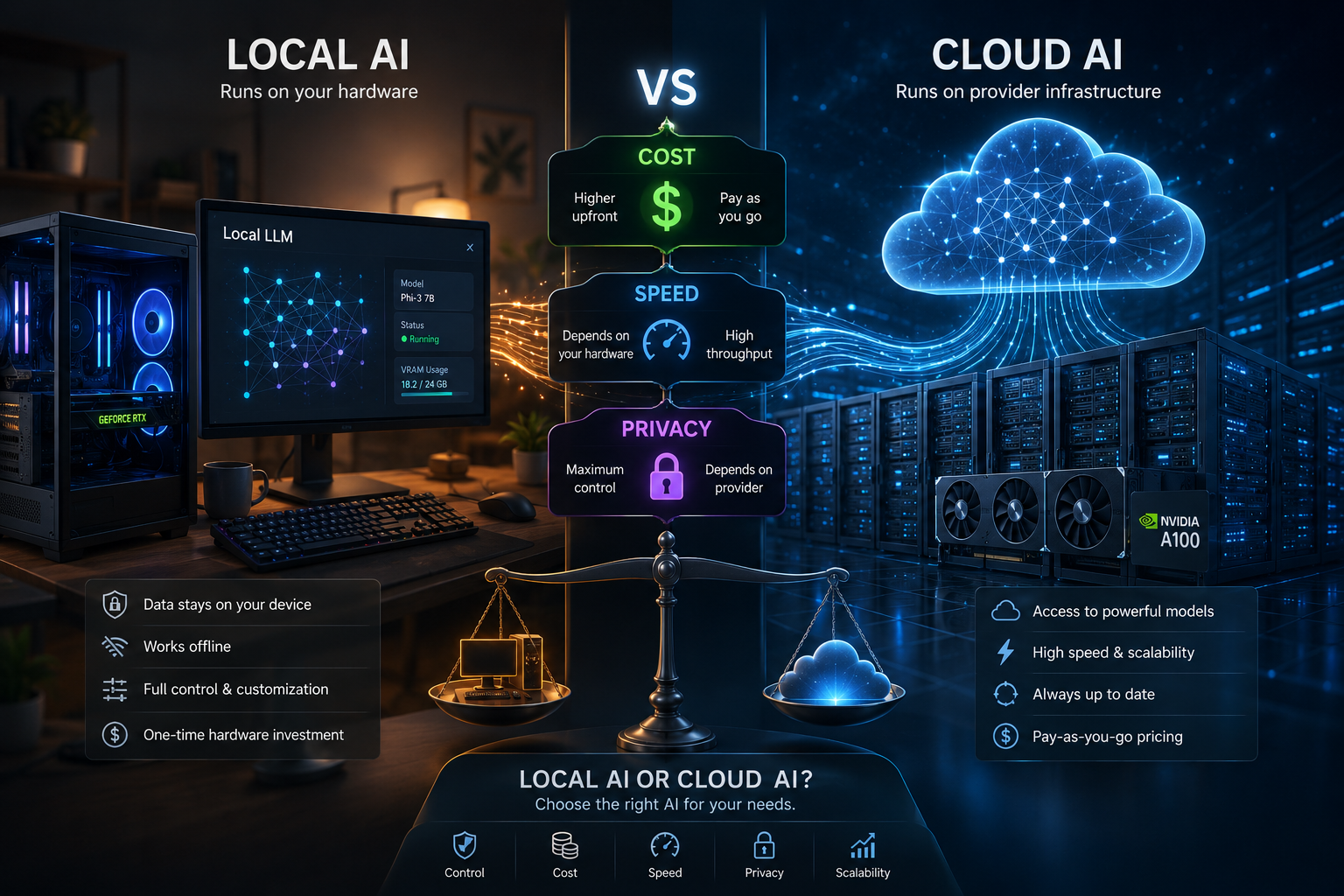
How does this setup compare with using a cloud AI service?
| Factor | Open WebUI + Local Model | Cloud AI |
| Data location | Your infrastructure | Provider infrastructure |
| Internet requirement | Not necessarily | Usually required |
| API cost | No per-request API bill for local inference | Usually usage-based or subscription |
| Hardware requirement | Your computer/server | Provider handles infrastructure |
| Model selection | Models supported locally | Provider-dependent |
| Setup complexity | Higher | Very low |
| Maintenance | User-managed | Provider-managed |
| Privacy control | Potentially higher | Depends on provider |
| Scaling | Limited by your hardware | Provider infrastructure |
| Latest frontier models | Not always available locally | Usually easier to access |
The key trade-off is control versus convenience.
Cloud AI is easier to start with. Local AI gives you substantially more control over your environment but requires hardware and maintenance.
How Private Is Open WebUI?
This is an important distinction.
Self-hosted does not automatically mean completely secure.
If Open WebUI and your AI models are running locally and you don’t expose the service externally, your setup can provide a strong level of privacy.
But security depends on your entire environment.
For a local-only setup:
- Keep Open WebUI bound to your local network where practical.
- Don’t expose port 3000 directly to the public internet.
- Keep your operating system updated.
- Keep Docker updated.
- Use authentication when multiple users are involved.
- Protect your computer with a strong login password.
- Keep backups of important Open WebUI data.
- Be careful with third-party extensions and tools.
- Don’t assume every model or plugin is trustworthy.
Avoid this mistake
Do not assume that:
localhost = automatically secureYour local machine could still be compromised by malware, malicious software, weak passwords, unsafe browser extensions, or other security problems.
Can Open WebUI Run Completely Offline?
Yes.
Open WebUI is designed to support offline operation, particularly when connected to local model providers such as Ollama.
However, “offline” should be understood correctly.
You may initially need internet access to:
- Download Open WebUI
- Download Docker images
- Install Ollama
- Download AI models
- Download dependencies
- Update software
After everything is installed, your local AI workflow can operate without sending prompts to a cloud AI provider.
Running Open WebUI with NVIDIA GPU Support
If your computer has a compatible NVIDIA GPU, you can configure Open WebUI for GPU-enabled deployments.
The official Open WebUI images include a CUDA variant. The documentation provides a configuration using:
docker run -d \
  -p 3000:8080 \
  --gpus all \
  --add-host=host.docker.internal:host-gateway \
  -v open-webui:/app/backend/data \
  --name open-webui \
  --restart always \
  ghcr.io/open-webui/open-webui:cuda
GPU acceleration can improve local AI performance, but the actual inference speed depends heavily on the model, quantization, GPU memory, backend configuration, and other hardware factors.
Using the Open WebUI Image With Ollama Included
Open WebUI also provides an image variant that bundles Ollama.
For a CPU-based setup, the official documentation provides:
docker run -d \
  -p 3000:8080 \
  -v ollama:/root/.ollama \
  -v open-webui:/app/backend/data \
  --name open-webui \
  --restart always \
  ghcr.io/open-webui/open-webui:ollama
There is also a GPU-oriented version for supported NVIDIA environments.
This approach can simplify deployment because Open WebUI and Ollama are packaged together.
Which setup should you choose?
| Setup | Best For |
| Ollama + Open WebUI separately | Beginners who want flexibility |
Open WebUI :ollama image | Simplified all-in-one deployment |
Open WebUI :cuda image | NVIDIA GPU-oriented deployment |
| Docker Compose | Repeatable multi-container setups |
| Kubernetes | Larger production deployments |
For a first installation, Ollama + Open WebUI separately is a good learning-friendly approach.
Docker Compose Setup
Docker Compose can make your setup easier to reproduce and maintain.
Create a file named:
docker-compose.ymlAdd:
services:
  openwebui:
    image: ghcr.io/open-webui/open-webui:main
    ports:
      - "3000:8080"
    volumes:
      - open-webui:/app/backend/data

volumes:
  open-webui:
Then run:
docker compose up -dThe official documentation currently recommends Docker Compose v2 syntax, using docker compose rather than the older docker-compose command.
You can stop the service with:
docker compose downOpen WebUI for Local Documents and RAG
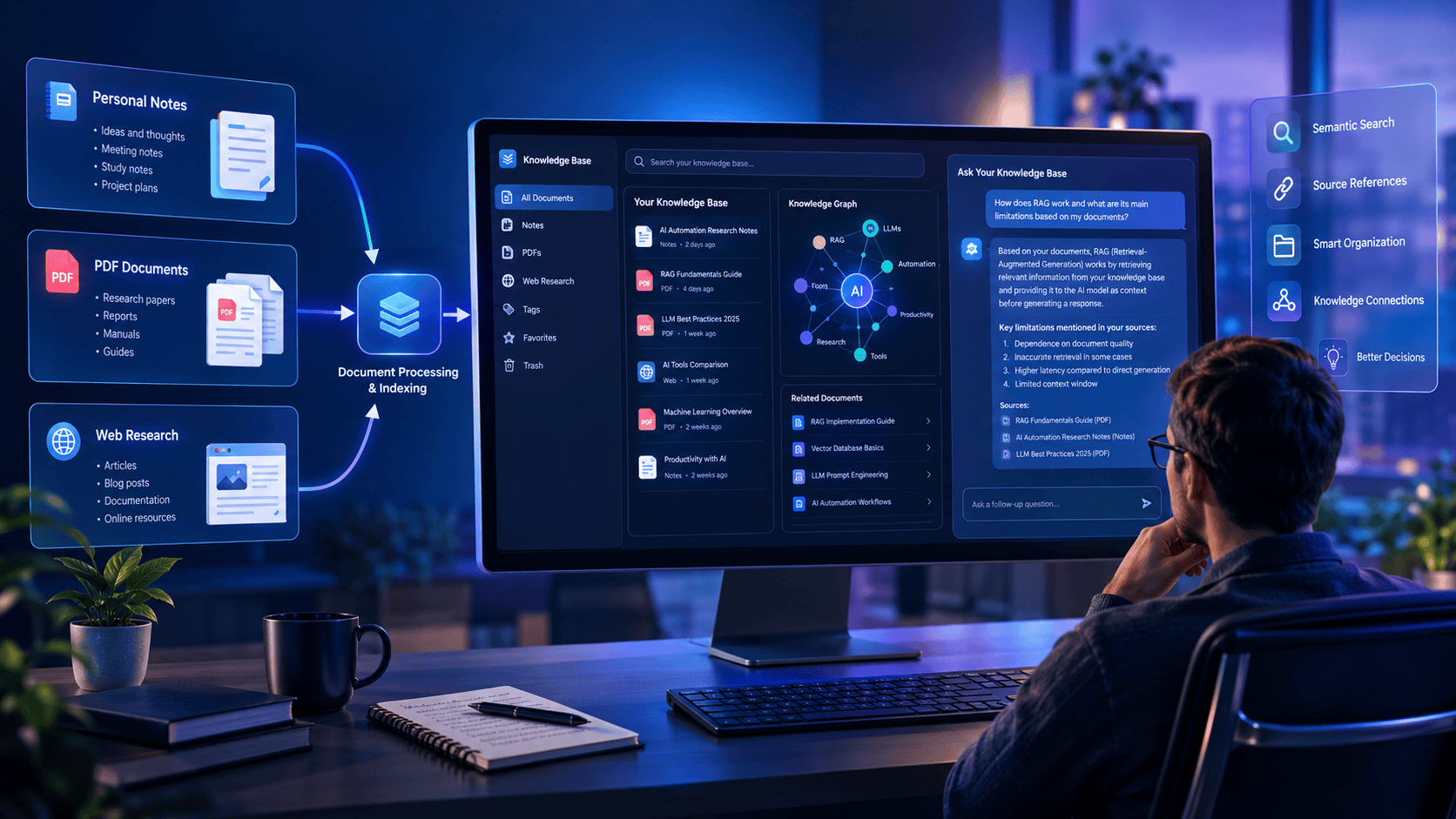
One of the most useful reasons to use a web interface instead of a basic command-line model is working with your own information.
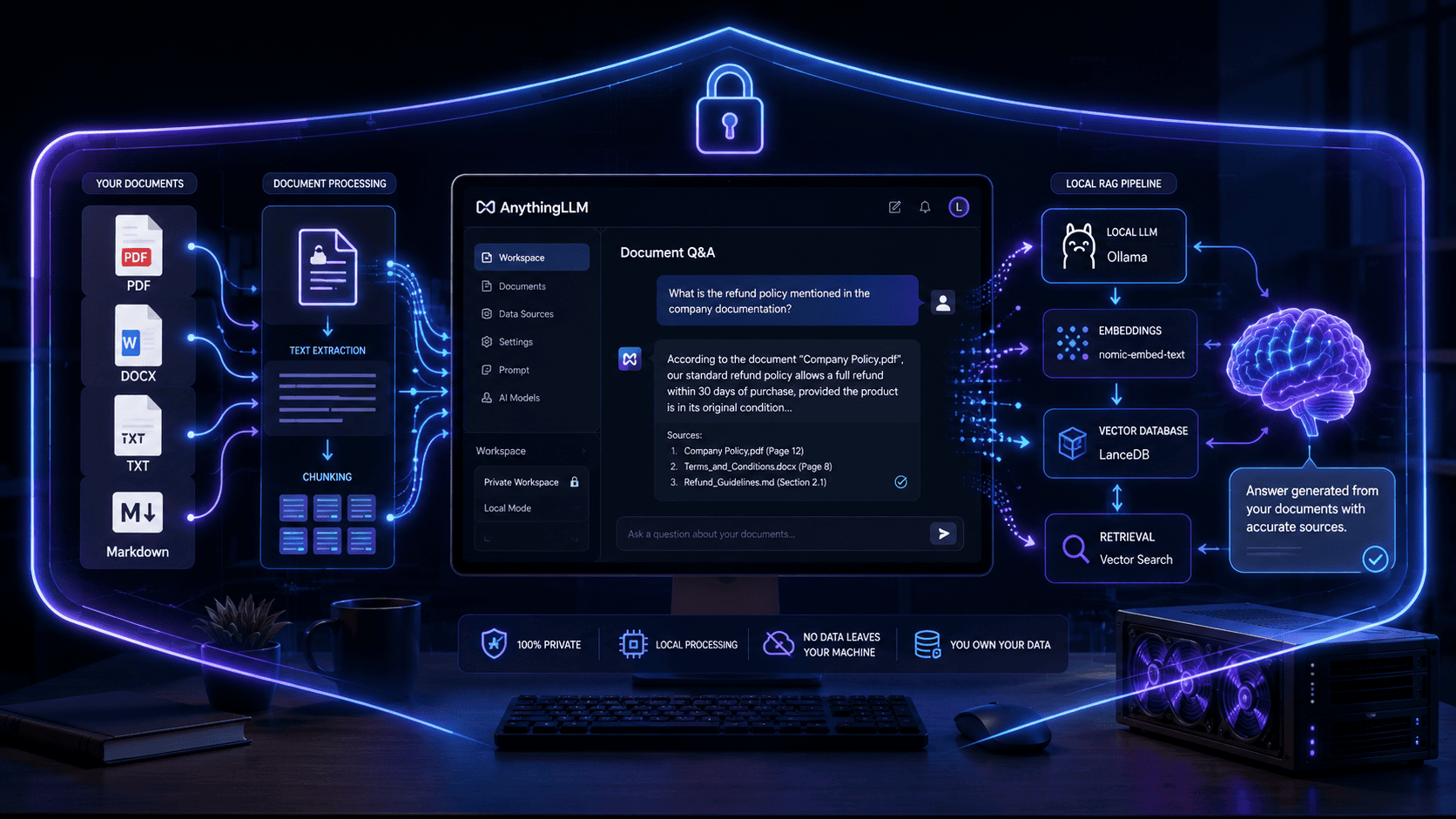
Open WebUI supports knowledge and document-oriented workflows that can be used for local AI applications.
A typical local RAG workflow looks like this:
Your Documents
      ↓
Document Processing
      ↓
Embeddings / Vector Search
      ↓
Relevant Context
      ↓
Local AI Model
      ↓
Open WebUI Response
This can be useful for:
- Research papers
- Company documentation
- Product manuals
- Notes
- Technical documentation
- PDFs
- Internal knowledge bases
However, always verify important answers. A local model can still hallucinate or misunderstand information even when the underlying documents are correct.
Open WebUI Context Length: An Important Setting
Context length is one of the settings that can significantly affect local AI performance.
A larger context allows the model to process more information, but it also consumes more RAM or VRAM.
Open WebUI’s documentation notes that the num_ctx parameter can override Ollama’s configured context length. It also warns that accidentally leaving a small value such as 2048 can restrict the amount of context available to the model.
Practical rule
Don’t automatically maximize context length.
Instead:
Start small → test performance → increase gradually.
If you increase context too aggressively, you may experience:
- Slower responses
- Higher memory usage
- Out-of-memory errors
- Reduced performance
Common Open WebUI Problems and Fixes
1. Open WebUI Doesn’t Open
Try:
docker psCheck whether the Open WebUI container is running.
If it isn’t:
docker start open-webuiYou can inspect logs with:
docker logs open-webui2. Ollama Models Don’t Appear
First check Ollama:
ollama listIf your models are present but Open WebUI doesn’t show them, verify the Ollama connection URL.
For Docker with Ollama running on the host, try:
http://host.docker.internal:11434This is the connection pattern documented by Open WebUI for Docker users.
3. Open WebUI Cannot Connect to Ollama
Check whether Ollama is running.
Try:
ollama listYou can also verify that Ollama’s service is accessible on its configured endpoint.
If you’re using Docker, check whether the container can reach the host.
Networking configuration is one of the most common causes of Open WebUI/Ollama connection problems.
4. AI Responses Are Extremely Slow
Possible causes include:
- Model is too large
- Insufficient RAM
- Insufficient VRAM
- CPU-only inference
- Excessive context length
- Model configuration
- Disk or system resource limitations
Try a smaller model first.
5. The Model Runs Out of Memory
Try:
- A smaller model.
- A more aggressive quantization.
- A smaller context length.
- Closing memory-intensive applications.
- Using a GPU with sufficient VRAM.
- Running fewer models simultaneously.
6. Long Conversations Become Slow
Long conversations require more context processing.
If a conversation becomes increasingly slow, consider starting a new chat or reducing the amount of context being passed to the model.
For advanced setups, review your model’s context configuration.
How to Update Open WebUI
If you installed Open WebUI with Docker, you can update it manually.
First remove the existing container:
docker rm -f open-webuiPull the latest image:
docker pull ghcr.io/open-webui/open-webui:mainThen recreate the container using your previous configuration.
Because your persistent data is stored in the Docker volume:
open-webuiyour application data can persist across container recreation.
Important: Back Up Before Updating
Before major updates, back up important data.
Also consider using a persistent secret key in production-style deployments. The current Open WebUI documentation recommends configuring WEBUI_SECRET_KEY so sessions aren’t invalidated whenever the container is recreated.
How to Back Up Open WebUI
Because Open WebUI stores important application data in its persistent volume, don’t treat the Docker container itself as your backup.
Your container can be recreated.
Your data needs separate protection.
At minimum:
- Back up the Open WebUI data volume.
- Store backups somewhere separate from the primary computer.
- Test restoring a backup.
- Back up before major upgrades.
- Keep sensitive backups protected.
A backup that has never been tested is not a reliable backup strategy.
Security Checklist for a Private Open WebUI Installation
Before using Open WebUI with sensitive information, review the following:
- Keep Open WebUI updated.
- Keep Ollama updated.
- Keep Docker updated.
- Use strong authentication.
- Don’t expose port 3000 directly to the public internet.
- Use HTTPS for remote access.
- Use a VPN or secure access layer for remote connections.
- Protect your computer and Docker environment.
- Back up important Open WebUI data.
- Review third-party models and extensions carefully.
- Don’t upload highly sensitive data without understanding your complete configuration.
- Verify AI-generated answers before relying on them.
Is Open WebUI Better Than Ollama’s Command Line?
For many users, yes—but they solve different problems.
Ollama’s command line is excellent for quickly running models:
ollama run llama3Open WebUI is better suited to users who want:
- A graphical interface
- Persistent conversations
- Multiple models
- Knowledge/document workflows
- Browser access
- Model management
- A ChatGPT-style experience
- Additional integrations
The official Open WebUI documentation describes the relationship similarly: Ollama manages and serves models, while Open WebUI adds a web interface and additional capabilities on top.
Open WebUI vs Other Local AI Interfaces
| Platform | Primary Strength | Best For |
| Open WebUI | Flexible self-hosted interface | General local AI users |
| Ollama CLI | Simple model execution | Developers and terminal users |
| LM Studio | Desktop local AI experience | Beginners wanting a GUI |
| llama.cpp | Efficient low-level inference | Advanced users |
| vLLM | High-performance serving | Developers and production workloads |
Open WebUI has an additional advantage because it isn’t limited to a single backend. Its documentation lists support for Ollama as well as OpenAI-compatible providers, llama.cpp, vLLM, Anthropic, and other integrations.
Who Should Use Open WebUI?
Open WebUI is particularly useful for:
Developers
Developers can experiment with local models, coding assistants, APIs, and private development workflows.
Researchers
Researchers can build local AI workflows around documents and knowledge bases.
Privacy-Conscious Users
Users who prefer keeping AI conversations on their own hardware can use local models instead of relying entirely on cloud services.
Small Teams
Teams can deploy a self-hosted AI environment where appropriate, provided authentication, network security, backups, and access controls are configured correctly.
AI Enthusiasts
If you frequently experiment with different open models, Open WebUI provides a convenient interface for switching between them.
Who Should Not Use Open WebUI?
Open WebUI may not be the best choice if you:
- Don’t want to manage software updates.
- Have very limited hardware.
- Need the newest frontier models immediately.
- Want zero configuration.
- Need guaranteed cloud-scale inference.
- Don’t want to troubleshoot networking or Docker.
In these situations, a managed cloud AI service may be more convenient.
Recommended Open WebUI Setup for Beginners
If you’re new to local AI, don’t overcomplicate the first installation.
A practical starting architecture is:
Windows / macOS / Linux
          │
          ├── Docker
          │      │
          │      └── Open WebUI
          │
          └── Ollama
                 │
                 └── Local AI Model
Start with:
- Ollama
- One reasonably sized model
- Open WebUI
- Local-only access
- Basic testing
- Document/RAG features later
Once everything works, you can experiment with GPUs, larger models, remote access, multiple providers, agents, and advanced workflows.
Open WebUI Setup: Quick Reference
| Step | Action |
| 1 | Install Ollama |
| 2 | Download a local model |
| 3 | Install Docker |
| 4 | Start Open WebUI |
| 5 | Open localhost:3000 |
| 6 | Connect Ollama |
| 7 | Select your model |
| 8 | Test a conversation |
| 9 | Configure privacy/security |
| 10 | Add documents/RAG if needed |
Frequently Asked Questions
Is Open WebUI completely free?
Open WebUI is open-source and self-hosted. Your main costs are the hardware, electricity, storage, and any external services you choose to connect.
Does Open WebUI require Ollama?
No.
Ollama is one of the easiest local backends to use with Open WebUI, but Open WebUI supports additional providers and protocols.
Can I use Open WebUI without the internet?
Yes. Open WebUI is designed to support offline operation when configured with appropriate local models and services.
You generally need internet access initially to download software, container images, and models.
Can Open WebUI run on Windows?
Yes. The official documentation lists Windows among the supported operating systems.
Docker Desktop and Ollama make Windows a practical platform for beginners.
Can Open WebUI run on Linux?
Yes. Linux is supported, and Docker is a common deployment approach.
Can I run Open WebUI without a GPU?
Yes.
A GPU is not mandatory. CPU-only setups are possible, although larger models may run considerably slower.
Does Open WebUI send my chats to the cloud?
Not inherently.
If you configure Open WebUI to use local models such as Ollama, the inference can remain on your local infrastructure. However, if you connect a cloud provider or external API, prompts may be sent to that provider.
Always check which model provider is active before submitting sensitive information.
Can I use multiple AI models?
Yes.
Open WebUI can work with multiple models and providers, allowing you to select different models for different workloads.
Can I access Open WebUI from my phone?
Yes.
Open WebUI can be accessed through a browser, and its current documentation also describes it as a Progressive Web App that can be installed on supported devices.
Is Open WebUI the same as ChatGPT?
No.
Open WebUI is an interface for AI models. ChatGPT is a commercial AI service from OpenAI.
Open WebUI can provide a similar conversational interface, but the underlying model, infrastructure, capabilities, and privacy characteristics depend on the provider you connect.
Is local AI always more private?
Not automatically.
Local AI can provide stronger control over where your prompts and documents are processed, but security still depends on your operating system, network, authentication, Docker configuration, extensions, models, backups, and other components.
Final Verdict: Is Open WebUI Worth Setting Up?
Yes—especially if you want a flexible, self-hosted interface for local AI models.
The combination of Ollama + Open WebUI provides a practical entry point into local AI.
Ollama handles the model-serving side, while Open WebUI provides a browser-based environment for interacting with those models and expanding into features such as knowledge workflows and integrations.
For beginners, the recommended path is straightforward:
Install Ollama → download a manageable local model → install Open WebUI with Docker → connect Ollama → start chatting.
Once the basic setup works, you can gradually expand your environment with larger models, GPU acceleration, document-based RAG, multiple providers, and more advanced AI workflows.
The biggest advantage isn’t simply that you can run AI without a cloud subscription.
It’s the control.
You control the machine, the models, the data, and—within the limits of your own infrastructure—the way the AI environment operates.
For anyone interested in privacy-focused AI, local LLMs, self-hosted software, or experimenting with open models, Open WebUI is one of the most practical platforms to add to a local AI toolkit.
Also Read
- How to Optimize Your Website for ChatGPT, Perplexity & AI Search (GEO Guide)
- How to Rank Local Indian Businesses on Google Maps Using AI
- How to Create Bulk Social Media Graphics with Canva and AI Prompts
- Copy-Paste AI Prompt Frameworks That Write High-Converting Email Sequences
- 5 Simple AI Workflows to Automate Daily Admin Tasks
- Make vs n8n for AI Automation
- 25 Real-World AI Workflows That Save 10+ Hours Every Week
- How to Extract Structured Data from PDFs Using Local LLMs
- Best AI Productivity Tools for Daily Tasks
- How to Build an AI Assistant Without Code
- Best Free Open-Source AI Automation Tools




Leave a Reply