

Introduction
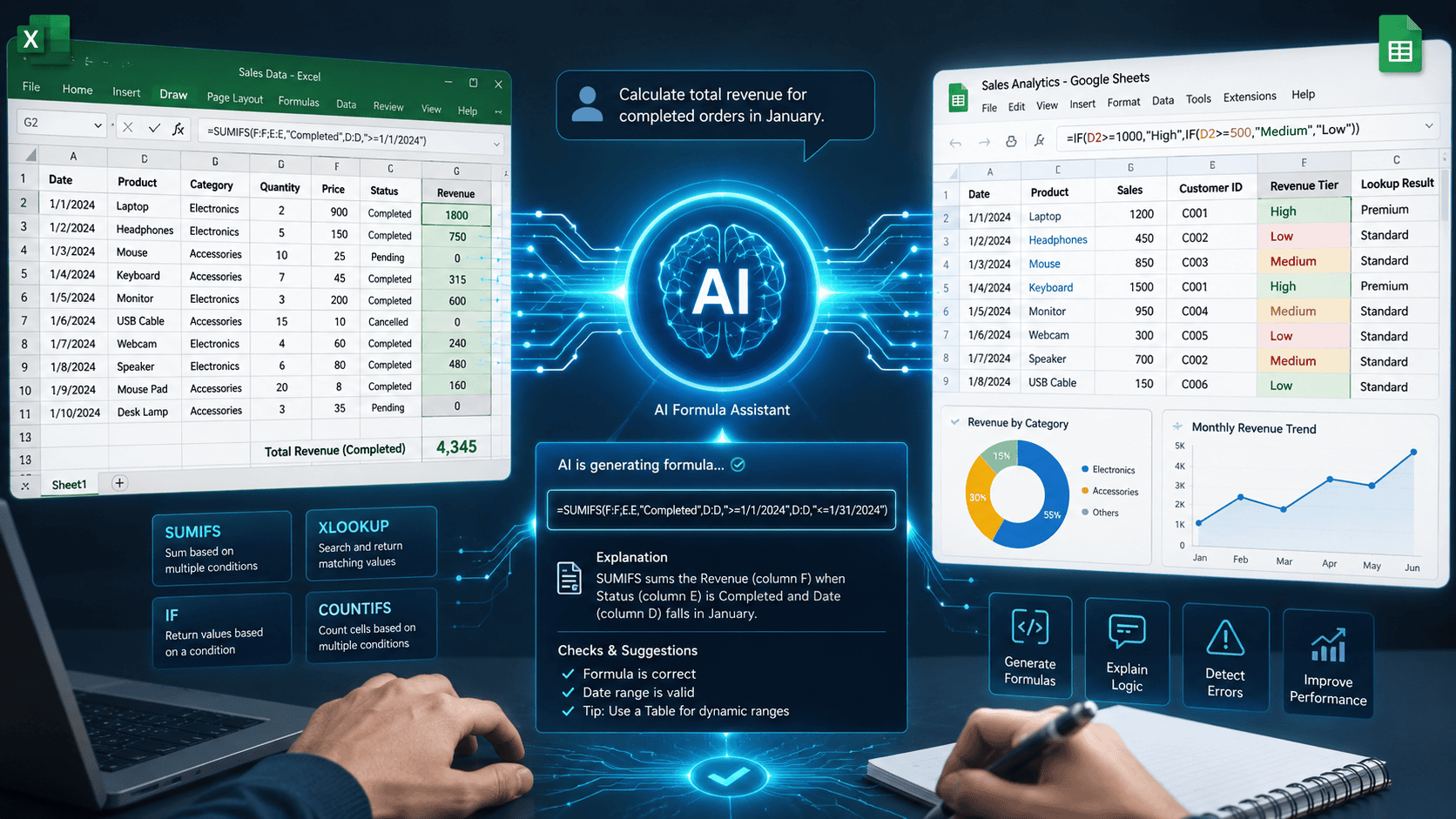
AI can dramatically reduce the time required to create, understand, troubleshoot, and improve spreadsheet formulas. Instead of manually searching for the correct Excel or Google Sheets syntax, you can describe what you want in plain English and use an AI assistant to generate a formula you can test and adapt.
For example, you can ask:
“Create an Excel formula that calculates total revenue only when the order status is Completed.”
AI can turn that requirement into a formula using functions such as SUMIFS, explain how it works, and help modify it when your spreadsheet structure changes.
This makes AI particularly useful for repetitive spreadsheet work involving calculations, lookups, conditional logic, data cleaning, reporting, and analysis.
However, AI-generated formulas should always be tested against known results before being used in important financial, business, operational, or analytical workflows.
Key Takeaways
- AI can generate Excel and Google Sheets formulas from plain-English instructions.
- You can use AI to explain complicated formulas instead of learning every function manually.
- AI is useful for debugging formulas that return errors or unexpected results.
- Clear prompts containing column names, conditions, and expected output produce better formulas.
- AI-generated formulas should be verified using sample data before being trusted.
- Excel and Google Sheets have overlapping functionality, but their functions and AI integrations are not always identical.
- Sensitive business, financial, customer, or personal data should not be pasted into an AI tool unless the tool and account configuration are appropriate for that use.
- The biggest productivity gain comes from using AI as a formula assistant and verification partner, not as an unquestioned source of spreadsheet logic.
At a Glance
| Task | How AI Helps | Example |
|---|---|---|
| Create formulas | Converts plain English into formulas | “Calculate profit margin” |
| Explain formulas | Breaks complex formulas into steps | Explain an XLOOKUP formula |
| Fix errors | Identifies possible formula problems | Diagnose #N/A |
| Modify formulas | Adapts existing formulas | Add another condition |
| Create conditional logic | Builds IF, IFS, AND, and OR logic | Categorize customers |
| Lookups | Creates lookup formulas | Match product IDs |
| Data cleaning | Generates text and cleanup formulas | Extract names from text |
| Reporting | Builds calculation formulas | Monthly sales totals |
| Formula optimization | Suggests simpler approaches | Replace nested logic |
What Does AI Do in Excel and Google Sheets?
AI can act as a natural-language interface for spreadsheet formulas.
Instead of remembering whether a task requires SUMIFS, COUNTIFS, INDEX + MATCH, XLOOKUP, FILTER, TEXTJOIN, or another function, you can describe the desired result.
For example:
Traditional approach:
- Identify the required function.
- Search documentation or tutorials.
- Determine the correct syntax.
- Build the formula.
- Debug errors.
- Adjust the formula for your spreadsheet.
AI-assisted approach:
- Describe the desired result.
- Provide the relevant column structure.
- Ask AI to generate the formula.
- Test it against sample data.
- Ask AI to modify or explain it if necessary.
The second approach can significantly reduce the amount of time spent on formula construction, particularly when working with unfamiliar functions.
Excel vs Google Sheets: Where AI Fits
Excel and Google Sheets both support sophisticated formulas, but their AI capabilities and integrations can differ.
| Feature | Excel | Google Sheets |
| Basic formulas | Excellent | Excellent |
| Advanced formulas | Excellent | Excellent |
| Natural-language assistance | Available through Microsoft’s AI ecosystem and other AI tools | Available through Google’s AI ecosystem and other AI tools |
| External AI assistants | Yes | Yes |
| Formula explanation | Yes | Yes |
| Formula debugging | Yes | Yes |
| Automation | Strong | Strong |
| Collaboration | Strong | Excellent |
| Cloud-first workflow | Available | Excellent |
The exact AI features available inside each application can change over time, so the most durable workflow is to understand how to communicate the spreadsheet problem to AI, rather than relying on one particular AI feature.
How to Use AI to Create Excel and Google Sheets Formulas
Step 1: Define the Spreadsheet Structure
Before asking AI for a formula, identify the relevant columns.
For example:
| Column | Data |
| A | Order ID |
| B | Product |
| C | Category |
| D | Quantity |
| E | Price |
| F | Status |
Suppose you want to calculate revenue only for completed orders.
Instead of asking:
“Give me a sales formula.”
Give AI more context:
“I have an Excel spreadsheet where column D contains quantity, column E contains price, and column F contains order status. Create a formula that calculates total revenue only when the status is Completed.”
The additional context gives AI enough information to construct a more useful formula.
Step 2: Describe the Desired Result
Tell AI exactly what the formula should accomplish.
For example:
“Calculate the total revenue from rows 2 through 100 where the order status in column F is Completed. Revenue is quantity in column D multiplied by price in column E.”
AI may suggest a formula such as:
=SUMPRODUCT((F2:F100="Completed")*D2:D100*E2:E100)The important point is not to blindly copy the formula.
You should test it against several rows where you already know the expected answer.
Step 3: Ask AI to Explain the Formula
If you don’t understand the formula, ask:
“Explain this formula step by step in simple language.”
For the example above, AI should explain that:
F2:F100="Completed"identifies completed orders.D2:D100contains quantities.E2:E100contains prices.SUMPRODUCTcombines the conditions and calculations.
This turns AI into a learning tool rather than simply a formula generator.
Step 4: Test the Formula
Create a small test dataset with known results.
For example:
| Quantity | Price | Status | Expected Revenue |
| 2 | $20 | Completed | $40 |
| 3 | $15 | Pending | $0 |
| 5 | $10 | Completed | $50 |
The correct result should be:
$90
If AI-generated logic produces another result, investigate the formula before using it with real data.
Step 5: Ask AI to Modify the Formula
Once the basic formula works, you can ask AI to add conditions.
For example:
“Modify the formula so it only includes Completed orders from the Electronics category.”
AI might produce:
=SUMPRODUCT((F2:F100="Completed")*(C2:C100="Electronics")*D2:D100*E2:E100)Again, verify the result.
Practical AI Formula Examples
Example 1: Calculate Profit
Suppose:
- Column B = Revenue
- Column C = Cost
Ask:
“Create an Excel formula that calculates profit by subtracting cost in column C from revenue in column B.”
Formula:
=B2-C2You can then ask AI to extend it:
“Add a profit margin calculation.”
Possible formula:
=IFERROR((B2-C2)/B2,0)This also demonstrates why specifying how errors should be handled is useful.
Example 2: Create a Sales Category
Suppose column B contains sales amounts.
Ask:
“Create an Excel formula that labels sales above $1,000 as High, sales between $500 and $1,000 as Medium, and anything below $500 as Low.”
A possible formula is:
=IF(B2>1000,"High",IF(B2>=500,"Medium","Low"))You can then ask AI:
“Rewrite this using IFS and explain the difference.”
This is useful when learning alternative approaches.
Example 3: Find a Product Price
Suppose:
- Column A contains product IDs.
- Column B contains product names.
- Column C contains prices.
You want to retrieve the price for a product ID in E2.
Ask:
“Create an Excel formula that searches for the product ID in E2 in column A and returns the corresponding price from column C.”
AI may recommend:
=XLOOKUP(E2,A:A,C:C,"Not Found")You can then ask AI to create a Google Sheets-compatible alternative if needed.
Example 4: Count Completed Orders
Ask:
“Count the number of rows where the order status in column F is Completed.”
Formula:
=COUNTIF(F2:F100,"Completed")For multiple conditions:
=COUNTIFS(F2:F100,"Completed",C2:C100,"Electronics")Example 5: Extract Text
Suppose cell A2 contains:
John Smith - john@example.com
Ask:
“Create a Google Sheets formula that extracts the email address after the hyphen.”
Depending on the spreadsheet structure, AI might suggest:
=TRIM(INDEX(SPLIT(A2,"-"),1,2))The exact formula should be tested against variations in your real data.
How to Write Better AI Prompts for Spreadsheet Formulas
The quality of the prompt strongly affects the quality of the generated formula.
A weak prompt is:
“Give me a formula for sales.”
A stronger prompt is:
“In Google Sheets, column B contains order dates, column C contains customer names, column D contains sales amounts, and column E contains order status. Create a formula that calculates total sales for Completed orders in January. Explain the formula and mention any assumptions.”
The second prompt provides:
- Spreadsheet platform
- Column locations
- Data types
- Conditions
- Desired calculation
- Explanation requirement
A Reusable AI Formula Prompt
Use this template:
Spreadsheet: Excel / Google Sheets
Columns: [describe columns]
Goal: [what you want to calculate]
Conditions: [conditions]
Expected output: [what the result should look like]
Data range: [range]
Requirements: Create the formula, explain it step by step, identify potential edge cases, and provide a small example for verification.
This structure is much more reliable than simply asking AI to “write a formula.”
Use AI to Debug Excel and Google Sheets Formulas
AI is also useful when you already have a formula that isn’t working.
Instead of saying:
“My formula doesn’t work.”
Provide:
- The formula
- The expected result
- The actual result
- Relevant column structure
- Any error message
For example:
“My Google Sheets formula is
=XLOOKUP(A2,D:D,E:E). It returns#N/A. Column A contains product IDs and column D contains product IDs from another table. Explain three possible causes and show how to troubleshoot them.”
This gives AI enough context to investigate the problem.
Common Spreadsheet Errors AI Can Help Explain
AI can help you understand errors such as:
#N/A#VALUE!#REF!#DIV/0!#NAME?#NUM!#SPILL!
However, an AI explanation is only a starting point. You should inspect the underlying data and formula yourself.
Use AI to Improve Existing Formulas
AI doesn’t have to create formulas from scratch.
You can provide an existing formula and ask:
“Make this formula easier to understand without changing the result.”
Or:
“Can this formula be simplified?”
Or:
“Make this formula work for an expanding dataset.”
For example, a manually constructed nested formula might be replaced with a cleaner approach using functions such as XLOOKUP, FILTER, LET, or IFS, depending on the spreadsheet platform and requirements.
The goal should not always be the shortest formula.
A formula that is slightly longer but easier for your team to understand and maintain can be the better choice.
Use AI for Repetitive Spreadsheet Tasks
AI-generated formulas become particularly useful when the same calculation needs to be repeated across large datasets.
Common examples include:
Sales analysis
- Revenue calculations
- Profit margins
- Sales commissions
- Monthly totals
- Product performance
Finance
- Expense categorization
- Budget calculations
- Variance analysis
- Payment tracking
- Percentage changes
Operations
- Inventory calculations
- Order status tracking
- Delivery metrics
- Productivity calculations
Marketing
- Campaign metrics
- Conversion rates
- Customer segmentation
- Lead scoring
Data cleaning
- Extracting text
- Splitting values
- Standardizing data
- Removing unwanted characters
- Detecting missing values
AI Tool Comparison for Spreadsheet Formula Work
Different AI tools can help with spreadsheet formula generation, but the best option depends on your existing workflow.
| Tool Category | Best For | Main Advantage | Important Consideration |
| Microsoft AI tools | Excel users | Works within the Microsoft ecosystem | Availability depends on account and feature |
| Google AI tools | Google Sheets users | Fits the Google Workspace environment | Features can vary by plan |
| ChatGPT | Formula creation, explanation, debugging, learning | Flexible natural-language interaction | Verify formulas before production use |
| Claude | Complex formula reasoning and explanations | Strong long-form reasoning | Verify platform-specific syntax |
| Gemini | Google Workspace workflows | Strong integration with Google’s ecosystem | Feature availability can vary |
The important question is not simply “Which AI is best?”
Instead, ask:
Which AI fits the spreadsheet environment, data sensitivity, and workflow I already use?
Practical Testing Framework for AI-Generated Formulas
Never evaluate an AI-generated formula only by whether it looks correct.
Use a simple five-step testing process.
1. Test a normal case
Use an ordinary row where the expected result is known.
2. Test an edge case
Try:
- Blank cells
- Zero values
- Duplicate values
- Missing lookup results
- Unexpected text
3. Test an error case
Deliberately provide invalid or incomplete data and check how the formula behaves.
4. Compare against a manual calculation
Calculate a small sample manually and compare the result with the AI-generated formula.
5. Test at scale
After the formula works on a small dataset, test it on the full dataset.
This helps catch problems that aren’t obvious in a handful of rows.
Do Not Trust AI-Generated Spreadsheet Formulas Blindly
AI can generate formulas that look convincing but contain subtle logical errors.
Potential problems include:
- Incorrect cell ranges
- Wrong conditions
- Missing edge cases
- Incorrect function syntax
- Mixing Excel and Google Sheets syntax
- Misinterpreting business rules
- Incorrect assumptions about the data
- Formulas that work on sample data but fail on real-world variations
For example, AI might correctly understand that you want to calculate revenue but incorrectly interpret whether refunds should be included.
That is not a syntax problem.
It is a business-logic problem.
Therefore, always verify that the formula calculates what your business rule actually requires.
Privacy and Data Safety When Using AI With Spreadsheets
Be careful when sharing spreadsheet information with external AI services.
Avoid unnecessarily pasting:
- Customer personal information
- Passwords
- API keys
- Financial account information
- Confidential business information
- Private employee information
- Proprietary datasets
If you need AI assistance with sensitive data, consider using anonymized sample data or an approved enterprise environment with appropriate privacy and security controls.
For example, instead of sharing:
John Smith — Customer ID 839274 — $12,500 purchase
use:
Customer A — ID 001 — $12,500 purchase
The AI often needs the structure and logic, not the identity of the person.
Concrete ROI Example
Consider a small e-commerce business that maintains a spreadsheet containing 10,000 orders.
Suppose an employee previously spent approximately 30 minutes creating and troubleshooting a monthly sales formula.
With a reusable AI prompt and a tested formula template, the same task might take only 5 minutes.
That saves:
25 minutes per reporting cycle.
If the task is repeated four times per month:
25 × 4 = 100 minutes saved per month
That is approximately:
20 hours saved per year.
The actual savings will vary depending on spreadsheet complexity, employee experience, and how often the workflow is repeated.
The larger opportunity comes when AI-assisted formulas are reused across many recurring reports rather than generated once.
Who Should Use AI for Excel and Google Sheets Formulas?
This workflow is particularly useful for:
Beginners
You can describe the desired calculation without memorizing complex syntax.
Business professionals
AI can speed up repetitive reporting and analysis.
Finance teams
It can help construct and explain calculation logic, although important financial models require careful human validation.
Analysts
AI can accelerate formula prototyping and debugging.
Students
It can explain spreadsheet functions and help turn natural-language requirements into formulas.
Small-business owners
AI can reduce the time spent maintaining operational spreadsheets without requiring advanced spreadsheet expertise.
When AI May Not Be the Best Approach
AI isn’t always necessary.
For a simple calculation such as:
=A2+B2creating the formula yourself is often faster than asking AI.
AI becomes more valuable when:
- The formula is complex.
- You don’t know which function to use.
- Multiple conditions are involved.
- You need to debug an existing formula.
- You need to adapt a formula to changing requirements.
- You need to understand unfamiliar spreadsheet logic.
- You are building a repeatable spreadsheet workflow.
Think of AI as a productivity layer, not a replacement for spreadsheet fundamentals.
A Simple AI-Powered Spreadsheet Workflow
A reliable workflow looks like this:
Define the requirement → Describe the spreadsheet → Generate formula → Explain formula → Test with known data → Test edge cases → Apply to dataset → Monitor results
This workflow is safer than:
Ask AI → Copy formula → Trust formula
The first approach combines AI speed with human verification.
Common Mistakes to Avoid
Mistake 1: Providing Too Little Context
Bad:
“Write an Excel formula for sales.”
Better:
“Column D contains quantity, column E contains price, and column F contains order status. Calculate revenue only for Completed orders.”
Mistake 2: Not Specifying Excel or Google Sheets
Some functions and behaviors differ between platforms.
Always identify the spreadsheet application when platform-specific syntax matters.
Mistake 3: Not Explaining Business Rules
“Calculate profit” could mean:
Revenue − product cost
or:
Revenue − product cost − shipping − advertising − transaction fees
AI cannot reliably infer a business definition that you haven’t provided.
Mistake 4: Not Testing Edge Cases
A formula that works for normal rows can fail when cells are blank, duplicated, or contain unexpected values.
Mistake 5: Copying a Formula Without Understanding It
If the spreadsheet is important, understand what the formula does before deploying it.
Mistake 6: Sharing Sensitive Data
Use anonymized sample data whenever possible.
How to Build Your Own AI Formula Library
If you repeatedly perform the same spreadsheet tasks, save your tested formulas and prompts.
Create categories such as:
- Lookup formulas
- Sales formulas
- Finance formulas
- Date formulas
- Text formulas
- Data-cleaning formulas
- Conditional formulas
- Reporting formulas
For each formula, record:
| Field | Example |
| Task | Calculate monthly sales |
| Platform | Excel |
| Formula | Tested formula |
| Input columns | Date, Sales, Status |
| Expected output | Monthly total |
| Edge cases | Blank dates, refunds |
| Last verified | Date of verification |
Over time, this becomes a reusable internal formula library.
Frequently Asked Questions
Can AI create Excel formulas?
Yes. AI can generate Excel formulas from natural-language descriptions. You should provide the spreadsheet structure, desired calculation, conditions, and expected output, then verify the resulting formula.
Can AI create Google Sheets formulas?
Yes. AI can generate and explain many Google Sheets formulas. Specify that you are using Google Sheets when asking for platform-specific syntax.
Can ChatGPT write Excel formulas?
Yes. ChatGPT can help create, explain, modify, and troubleshoot Excel formulas. The resulting formulas should be tested against known results before being used in important spreadsheets.
Can AI fix an Excel formula?
AI can help identify potential problems and suggest corrections. Providing the original formula, error message, spreadsheet structure, expected result, and actual result makes troubleshooting more effective.
Is AI reliable for financial spreadsheets?
AI can assist with financial spreadsheet formulas, but important financial calculations should be independently verified. A formula can be syntactically correct while still implementing the wrong business rule.
Can AI automate Google Sheets completely?
AI-generated formulas can automate many calculations, but complete spreadsheet automation may require additional tools such as scripts, macros, APIs, or workflow automation platforms.
What is the best AI for Excel formulas?
There is no universal winner. Microsoft-focused AI tools are useful for Excel-centric workflows, Google-focused AI tools are useful for Google Sheets, while general-purpose AI assistants can be useful for formula generation, explanation, and debugging.
Should I trust AI-generated formulas?
No formula should be trusted solely because AI generated it. Test it against known results, edge cases, and the actual business requirements before using it in production.
Final Verdict
AI makes Excel and Google Sheets formulas significantly more accessible.
Instead of spending time searching for the correct function or trying to debug complicated syntax manually, you can describe what you want in plain English and use AI to generate a starting formula, explain the logic, and suggest improvements.
The biggest productivity gains come from combining AI-generated formulas with human verification.
A reliable process is:
Describe → Generate → Explain → Test → Validate → Reuse
For simple calculations, traditional spreadsheet skills may still be faster. But for complex formulas, repetitive reporting, data cleaning, lookups, conditional logic, and troubleshooting, AI can become a valuable spreadsheet productivity tool.
The goal isn’t to eliminate spreadsheet knowledge. It’s to make that knowledge more accessible while reducing the time required to turn a business requirement into working spreadsheet logic.
Also Read
- Open-Source AI Model Weekly Roundup & Performance Benchmarks
- Make vs n8n for AI Automation
- How to Reduce LLM API Costs for Web Apps and Chatbots
- How to Extract Structured Data from PDFs Using Local LLMs
- Best AI Productivity Tools for Daily Tasks
- How to Build an AI Assistant Without Code
- How to Set Up Open WebUI for a Private Local AI Chat Experience
- Local AI vs Cloud AI: Cost, Speed, and Privacy Comparison
- How to Create a Private Document QA Bot Using AnythingLLM
- How Students and Researchers Can Use AI for Literature Reviews Ethically
- Best Free AI Note-Taking Apps for Meetings and Lectures
- How to Use AI for E-commerce Product Description Generation at Scale












Leave a Reply