

Introduction
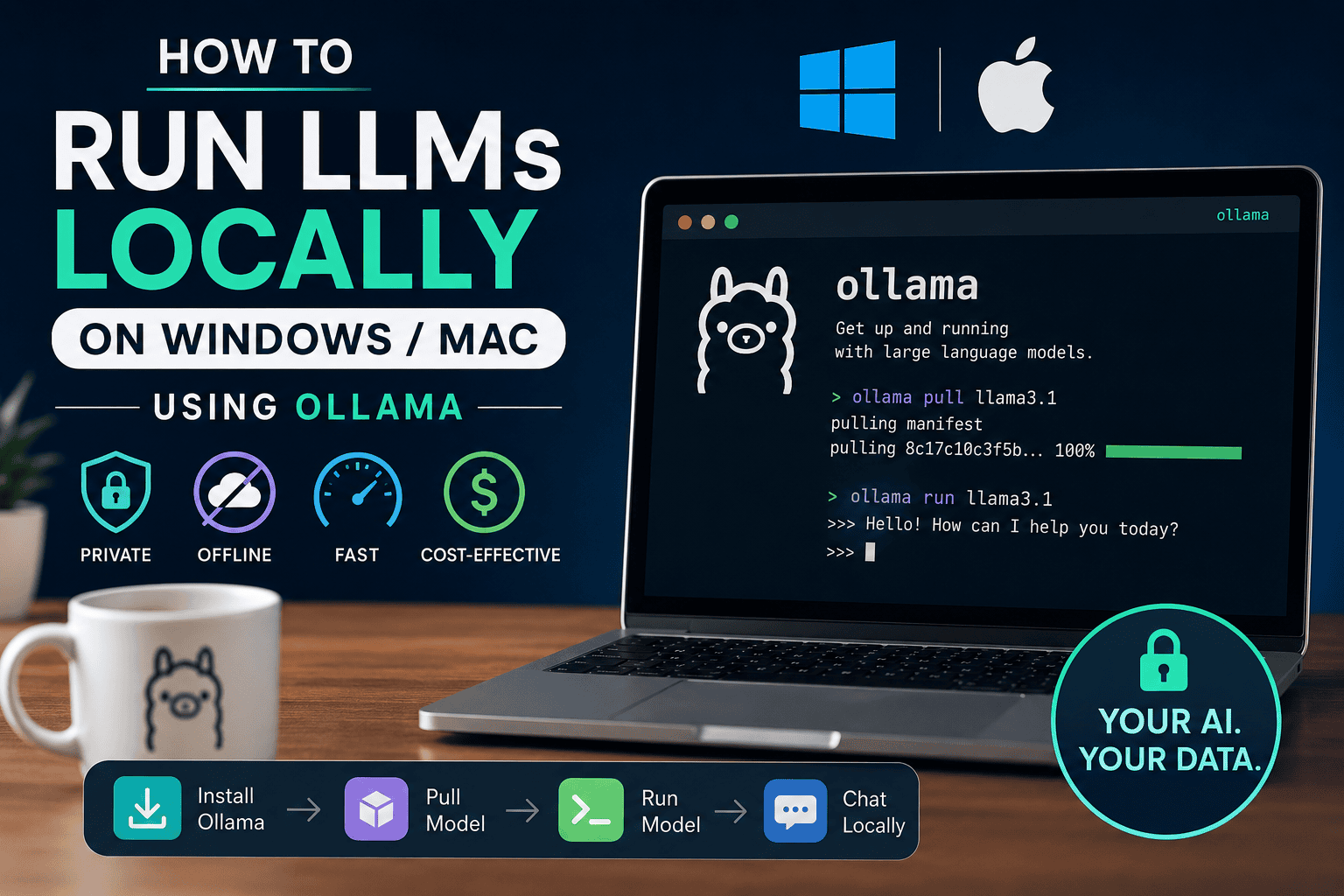
Running a large language model (LLM) no longer requires sending every prompt to a cloud-based AI service. With tools such as Ollama, you can download compatible AI models and run them directly on your Windows PC or Mac.
This approach gives you greater control over your AI environment, can reduce dependence on cloud APIs, and makes it possible to experiment with local models without building a complicated AI infrastructure.
Ollama is designed to make local model execution relatively simple. It provides desktop applications for macOS and Windows, a command-line interface, model management commands, and a local API available by default at http://localhost:11434/api.
In this guide, you’ll learn how to run LLMs locally on Windows and Mac using Ollama, from installation and model selection to GPU monitoring, troubleshooting, and connecting Ollama with Open WebUI.
Important: Running an LLM locally does not automatically mean every AI interaction is private. Privacy depends on the model, application, integrations, network configuration, and whether you use local or cloud-hosted models. Always verify what your particular setup sends externally.
Key Takeaways
- Ollama lets you run supported LLMs locally on Windows, macOS, and Linux.
- Windows support currently includes Windows 10 22H2 or newer.
- macOS support currently requires macOS Sonoma 14 or newer.
- Apple Silicon Macs can use GPU acceleration through Metal.
- Windows systems can use supported NVIDIA and AMD Radeon GPUs.
- You can download models with
ollama pull. - You can start a model with
ollama run. ollama lslists installed models.ollama psshows models currently loaded in memory.- Ollama’s local API normally runs on port
11434. - Larger models generally require more RAM/VRAM and can be slower on modest hardware.
- Open WebUI can provide a more advanced browser-based interface on top of Ollama.
At a Glance
| Task | Recommended approach |
|---|---|
| Run a small local LLM | Start with a smaller quantized model |
| Windows installation | Install the native Ollama application |
| Mac installation | Install Ollama and place it in Applications |
| Download a model | ollama pull <model> |
| Run a model | ollama run <model> |
| List installed models | ollama ls |
| Check running models | ollama ps |
| Stop a model | ollama stop <model> |
| Local API | http://localhost:11434/api |
| Better web interface | Ollama + Open WebUI |
| Limited hardware | Use smaller models |
| More RAM/VRAM | Experiment with larger models |
What Is Ollama?
Ollama is a local AI runtime that simplifies downloading, managing, and running language models on your own hardware.
Instead of manually assembling an inference stack, users can install Ollama and interact with models using commands such as:
ollama pull gemma3and:
ollama run gemma3Ollama also exposes a local API, which allows developers to integrate local models into applications and automation workflows. The default local API endpoint is:
http://localhost:11434/apiNo authentication is required when accessing the local API through localhost. Authentication is relevant for Ollama’s cloud services, publishing models, and private models.
The official Ollama documentation currently highlights models including gpt-oss, Gemma 3, DeepSeek-R1, and Qwen3, among others.
Ollama in simple terms
Think of the setup like this:
Your computer → Ollama → Local LLM → Your prompt → Local response
Ollama handles the model runtime while your computer provides the CPU, GPU, RAM, and storage.
Why Run LLMs Locally?
Cloud AI is convenient, but local AI has several advantages.
1. Greater control
Your model runs on hardware that you control instead of relying entirely on a third-party inference service.
2. Reduced cloud dependency
Once a model is downloaded, basic local inference does not require sending prompts to a cloud AI API.
3. Potential privacy benefits
Local inference can be useful for sensitive documents or private workflows because prompts can remain on the machine.
However, you should still verify your application’s network behavior and integrations before assuming complete offline privacy.
4. No per-request API bill for local inference
Running a downloaded model locally doesn’t involve a cloud API charge for each generated response.
You still have hardware, electricity, storage, and maintenance costs.
5. Developer experimentation
Ollama exposes a local API and supports integrations with applications and development frameworks.
This makes it useful for:
- AI application development
- Local coding assistants
- Document processing
- Prototyping
- AI automation
- Local chatbots
- Retrieval-augmented generation experiments
- Private knowledge assistants
System Requirements for Windows and Mac
Your hardware is one of the most important factors when running local LLMs.
A model that works comfortably on one computer may be extremely slow or fail to load on another.
Windows requirements
Ollama’s current Windows documentation lists:
- Windows 10 22H2 or newer
- Home or Pro editions
- NVIDIA GPU support with NVIDIA driver 452.39 or newer
- AMD Radeon GPU support with an appropriate AMD driver
Ollama runs as a native Windows application and makes the ollama command available through Command Prompt, PowerShell, or another terminal.
Mac requirements
Current Ollama documentation lists:
- macOS Sonoma 14 or newer
- Apple Silicon Macs with CPU and GPU support
- Intel Macs with CPU-only support
Apple Silicon systems can use Apple’s Metal GPU acceleration.
Storage matters
LLMs can consume substantial disk space. Ollama’s Mac documentation notes that model files can range from tens to hundreds of gigabytes depending on what you download.
Therefore, don’t look only at RAM and GPU memory. Available SSD storage matters too.
Before You Start
Before installing Ollama, take a moment to check these three things:
- Operating system — Confirm that your Windows PC or Mac is running a supported version of its operating system.
- Available memory — Check your system’s RAM, VRAM, or unified memory. Larger local models generally require more available memory.
- Available SSD storage — Make sure you have enough free storage for Ollama, downloaded model files, and additional model versions you may want to test.
Quick tip: You don’t need a high-end workstation to get started with local AI. Begin with a smaller model that fits comfortably within your available memory, then move to larger models as your hardware allows.
Once these checks are complete, you can install Ollama on Windows or macOS and download your first local LLM.
How to Install Ollama on Windows
Step 1: Download Ollama
Download the Windows version from the official Ollama website.
Step 2: Install Ollama
Run the installer and follow the installation instructions.
After installation, Ollama runs in the background and makes the ollama command available from your terminal.
Step 3: Open PowerShell
Press:
Windows Key → Search → PowerShell → Open
Then run:
ollamaIf Ollama is installed correctly, you should see its command-line interface.
Step 4: Verify the installation
Try:
ollama --helpIf the command displays Ollama’s available commands, the CLI is accessible.
How to Install Ollama on Mac
Step 1: Download Ollama
Download the macOS version from the official Ollama website.
Step 2: Open the installer
Mount the downloaded ollama.dmg.
Step 3: Move Ollama to Applications
Drag the Ollama application into the system-wide Applications folder.
When Ollama starts, it can verify whether its CLI is available in your PATH and prompt for permission if it needs to create the appropriate link.
Step 4: Open Terminal
Open:
Applications → Utilities → Terminal
Then run:
ollamaYou can also verify the CLI:
ollama --helpHow to Download Your First LLM
Once Ollama is installed, you need to download a model.
Ollama provides a model library where you can find compatible models.
For example:
ollama pull gemma3This downloads the specified model to your computer.
The Ollama API documentation also provides a model-pull endpoint for programmatic downloads.
Check installed models
After downloading a model:
ollama lsThe CLI documentation lists ollama ls as the command for viewing installed models.
How to Run an LLM with Ollama
After downloading a model, running it is straightforward.
For example:
ollama run gemma3You can then type a prompt directly into the terminal.
Example:
>>> Explain how neural networks work in simple terms.Ollama will process the request using the model installed on your computer.
The quickstart documentation also supports launching models through the interactive Ollama interface.
Run a model with a prompt directly
You can also provide the prompt as part of the command:
ollama run gemma3 "Explain quantum computing in simple terms"The Ollama CLI supports this style of model interaction.
Useful Ollama Commands
Here are some of the most useful commands for beginners.
| Command | Purpose |
ollama | Open the interactive menu |
ollama --help | Display help |
ollama pull <model> | Download a model |
ollama run <model> | Run a model |
ollama ls | List installed models |
ollama ps | List currently running models |
ollama stop <model> | Stop a running model |
ollama rm <model> | Remove a model |
ollama serve | Start the Ollama server |
ollama show <model> | Display model information |
ollama create | Create a customized model |
These commands are documented in Ollama’s current CLI reference.
Example workflow
ollama pull gemma3Then:
ollama lsThen:
ollama run gemma3When you’re finished:
ollama stop gemma3How to Check CPU/GPU Usage
One of the biggest questions when running local AI is:
Is Ollama actually using my GPU?
You can start by running:
ollama psOllama’s API documentation shows that running-model information can include model size, parameter size, quantization level, context length, and VRAM usage.
For example, the API can be queried with:
curl http://localhost:11434/api/psThis returns information about currently loaded models.
Windows
For NVIDIA GPUs, you can also use:
nvidia-smiThis can help you observe GPU memory and utilization while a model is running.
Mac
On Apple Silicon Macs, Ollama can use Metal GPU acceleration.
You can also use macOS’s built-in Activity Monitor to inspect CPU and memory usage.
Why GPU acceleration matters
LLM inference can involve substantial computation.
When supported hardware acceleration is available, Ollama can use GPU resources instead of relying entirely on the CPU.
However, GPU usage doesn’t automatically mean maximum performance. Model size, quantization, context length, memory bandwidth, thermal limits, and available VRAM/unified memory all affect performance.
How to Choose the Right Model for Your Hardware
Model selection is one of the most important parts of running local AI.
Don’t automatically download the largest model available.
Instead, consider:
- Available RAM
- Available VRAM or unified memory
- CPU performance
- GPU support
- Model parameter count
- Quantization
- Context length
- Desired response speed
- The type of workload
A practical starting strategy
Entry-level hardware
Start with a smaller model.
Good use cases include:
- Basic questions
- Summarization
- Simple writing
- Lightweight coding
- Experiments
Mid-range hardware
Try a medium-sized model if your system has enough memory.
This can provide a better balance between:
- Quality
- Speed
- Memory consumption
High-memory systems
Systems with substantial RAM or unified memory can experiment with larger models.
But remember:
A larger model is not automatically better for every task.
A smaller model that fits comfortably into memory may provide a much better interactive experience than a larger model that constantly struggles with memory constraints.
Hardware-to-Model Recommendation Table
Choosing a local LLM is easier when you start with the hardware you already have. The table below provides a practical starting point, not a strict compatibility chart. Actual performance depends on the model’s parameter count, quantization, context length, GPU/VRAM or unified memory, and how much memory is available to Ollama.
| Available Memory | Recommended Starting Model Size | Best Starting Workloads | What to Expect |
|---|---|---|---|
| 8GB RAM | Small models, typically around 1B–4B | Basic chat, summarization, simple writing | Keep expectations modest; larger models may be slow or fail to load |
| 16GB RAM | Around 3B–8B | General AI, writing, coding assistance, summarization | A good entry point for local AI |
| 32GB RAM | Around 7B–14B | Coding, reasoning, research, general-purpose AI | More flexibility for medium-sized models |
| 64GB RAM | Around 14B–32B+ | Advanced coding, reasoning, larger-context workloads | Suitable for experimenting with substantially larger models |
| 64GB+ / High-memory systems | Larger models depending on hardware | Advanced local AI, demanding development and experimentation | Model size becomes increasingly dependent on memory bandwidth and available GPU/unified memory |
How to Use This Table
These ranges should be treated as starting points rather than guaranteed requirements.
For example, a 16GB computer may be able to run a model that is larger than the suggested range, but that does not mean it will provide a good interactive experience. Conversely, a smaller quantized model may perform comfortably on hardware with less memory.
Ollama’s ollama ps command can show whether a loaded model is running entirely on the GPU, entirely in system memory, or across both. For example, Ollama reports 100% GPU, 100% CPU, or a CPU/GPU split in the Processor column.
ollama psRAM vs VRAM vs Unified Memory
Your computer’s memory configuration matters just as much as the advertised model size.
Windows with a dedicated GPU:
Pay close attention to system RAM and GPU VRAM. A model may fit into system RAM but perform differently if it cannot fit completely into available GPU memory.
Apple Silicon Mac:
CPU and GPU share unified memory, so the total available memory is particularly important when selecting larger local models.
CPU-only systems:
Local LLMs can still run, but response speed may be significantly lower, especially with larger models.
A Simple Rule for Beginners
If you’re unsure which model to choose:
- Start with a small model.
- Run a few representative prompts.
- Check memory usage and
ollama ps. - Evaluate response speed and quality.
- Move to a larger model only if your hardware has enough headroom.
This approach is usually better than downloading the largest model your computer can theoretically load.
Don’t Forget Context Length
Model size isn’t the only factor affecting memory usage. A larger context window can increase memory requirements. Ollama currently uses a default context window of 4,096 tokens, which can be changed through configuration.
For example:
OLLAMA_CONTEXT_LENGTH=8192 ollama serveIf a model works comfortably at a smaller context size but becomes slow or memory-heavy at a larger one, reduce the context length before assuming that the model itself is incompatible with your computer.
Best Strategy
Start small → measure → increase model size → optimize context.
This gives you a more reliable way to find the best balance between AI quality, response speed, and hardware usage.
Recommended Local LLMs
Ollama supports a wide range of local LLM families, but the best choice depends on your hardware and what you want to accomplish. As a practical starting point, consider these four model families:
| Model Family | Best Starting Use | Why Consider It |
|---|---|---|
| Gemma | General-purpose AI | A good starting point for everyday conversations, summarization, writing, and general AI tasks. |
| Qwen | Coding + general tasks | A versatile family with models available across different sizes, making it easier to match the model to your available hardware. |
| DeepSeek-R1 | Reasoning | Designed for reasoning-heavy tasks such as mathematics, logic, analysis, and complex problem solving. |
| gpt-oss | Open-weight experimentation | Useful for users who want to experiment with open-weight models and local AI workflows. |
How to Choose
- New to local AI? Start with a smaller Gemma or Qwen model that comfortably fits your available memory.
- Primarily coding? Try a suitable Qwen model and compare its performance with other coding-capable models.
- Need stronger reasoning? Consider DeepSeek-R1, starting with a smaller variant before moving to a larger model. Ollama provides DeepSeek-R1 variants ranging from 1.5B and 7B/8B models to much larger versions.
- Want to experiment with open-weight AI? gpt-oss can be a useful option to evaluate alongside the other model families.
Tip: The “best” local model is not necessarily the largest one. Start with a model that fits comfortably within your available RAM or VRAM, then move to a larger model if you need better reasoning, coding, or response quality.
Ollama vs Cloud AI
| Feature | Ollama / Local AI | Cloud AI |
| Where inference happens | Your computer | Provider infrastructure |
| Internet dependency | Usually not required for local inference | Usually required |
| Hardware requirement | Your hardware matters | Minimal local hardware |
| Per-request API cost | No cloud inference fee for local models | Usually usage-based or subscription |
| Privacy control | Greater local control | Depends on provider |
| Model availability | Depends on local hardware and supported models | Usually broader |
| Setup | Requires installation and model downloads | Usually immediate |
| Scaling | Limited by your hardware | Provider handles infrastructure |
| Maintenance | You manage your environment | Provider manages infrastructure |
| Best for | Local experimentation, privacy-sensitive workflows, development | Convenience, advanced hosted models, large-scale workloads |
Which should you choose?
Choose local Ollama when you prioritize:
- Local control
- Experimentation
- Offline-capable workflows
- Development
- Avoiding per-request cloud inference fees
- Running AI on your own machine
Choose cloud AI when you need:
- Minimal setup
- Very large models
- High-end inference infrastructure
- Easy access from multiple devices
- Provider-managed scaling
A hybrid approach can also be useful.
You can use Ollama for local workloads while using cloud APIs for tasks that exceed your local hardware capabilities.
Common Mistakes When Running LLMs Locally
Mistake 1: Downloading a model that is too large
A common beginner mistake is choosing a large model simply because it appears more capable.
Start smaller and scale upward.
Mistake 2: Ignoring storage
Model files can consume significant disk space. Ollama specifically notes that model storage can reach tens or hundreds of gigabytes depending on the models installed.
Mistake 3: Assuming every model uses your GPU
GPU support depends on the operating system, hardware, drivers, model, and Ollama’s runtime behavior.
Use:
ollama psand your operating system’s GPU monitoring tools to investigate.
Mistake 4: Increasing context too aggressively
Larger context windows can increase memory requirements.
Ollama documents OLLAMA_CONTEXT_LENGTH as a way to configure context size, while Open WebUI can also specify num_ctx.
Mistake 5: Treating local AI as automatically private
Local inference can improve control, but privacy still depends on your configuration.
Be particularly careful with:
- Cloud integrations
- Remote API endpoints
- Third-party frontends
- Browser extensions
- Plugins
- Network-accessible Ollama servers
Troubleshooting Common Ollama Problems
Ollama command not found
Try restarting your terminal after installation.
On Windows, the installer adds the relevant Ollama program location to the user PATH.
On macOS, verify that the Ollama CLI is available in your PATH.
Model is extremely slow
Check:
- Model size
- Available RAM
- GPU/VRAM
- GPU drivers
- CPU usage
- Thermal throttling
- Context length
- Whether another model is already loaded
Try a smaller model and compare performance.
Model won’t load
Your system may not have enough available memory for the selected model and context configuration.
Close unnecessary applications and try a smaller model.
Ollama is using too much storage
List your installed models:
ollama lsRemove models you no longer need:
ollama rm <model>Open WebUI cannot connect to Ollama
If Open WebUI is running in Docker while Ollama runs on the host machine, networking configuration matters.
Open WebUI’s documentation notes that Docker deployments may need to use host.docker.internal when connecting to an Ollama service running on the host.
For remote Ollama access, the Ollama server must also be configured to listen beyond localhost, which has security implications. Open WebUI’s troubleshooting documentation discusses configuring OLLAMA_HOST=0.0.0.0 for this scenario.
Do not expose an Ollama server directly to the public internet without understanding authentication, firewall, and network-security implications.
How to Use Ollama with Open WebUI
Ollama provides the model runtime, but its command-line interface isn’t necessarily the best interface for everyone.
That’s where Open WebUI can help.
Open WebUI provides a browser-based interface and supports native Ollama connections. When Ollama is running on the same machine, Open WebUI can automatically detect the Ollama instance in common setups.
Basic architecture
Your Computer
     │
     ├── Ollama
     │     │
     │     ├── Model A
     │     ├── Model B
     │     └── Model C
     │
     └── Open WebUI
             │
             └── Browser Chat Interface
Why combine them?
Ollama handles:
- Model downloads
- Model execution
- Model management
- Local API access
Open WebUI adds:
- Browser-based chat
- Conversation management
- Knowledge features
- Additional integrations
- A more familiar ChatGPT-style interface
Open WebUI’s documentation describes the combination as a common local AI setup, with Ollama handling the model layer and Open WebUI acting as the platform/interface layer.
Open WebUI + Ollama connection
After installing Open WebUI, go to its administration settings and configure the Ollama connection if automatic detection doesn’t work.
The default Ollama API uses:
http://localhost:11434If Open WebUI is running inside Docker and Ollama is running directly on the host, the appropriate host address can differ. Open WebUI specifically documents http://host.docker.internal:11434 for this common Docker configuration.
For a complete Open WebUI setup, see our related guide:
How to Set Up Open WebUI for a Private Local AI Chat Experience
This creates a natural next step after installing Ollama.
Practical Statistics to Know
When working with local LLMs, several numbers matter more than simply asking whether your computer is “powerful enough.”
Ollama’s current platform requirements
- Windows: Windows 10 22H2 or newer
- Mac: macOS Sonoma 14 or newer
- Mac Apple Silicon: CPU + GPU support
- Mac Intel: CPU-only
- Default local API port:
11434
Example model metadata
Ollama’s API documentation uses Gemma 3 as an example and reports a 4.3B parameter model with Q4_K_M quantization in its sample running-model response. The exact memory usage and performance will vary by model version and hardware.
Performance measurements
Ollama’s API can expose:
- Total generation duration
- Model loading duration
- Prompt token count
- Prompt evaluation duration
- Output token count
- Output evaluation duration
These metrics can be useful when comparing models or hardware.
The important lesson: don’t judge local AI performance from model size alone. Measure actual response speed and memory usage on your own workload.
Expert Tips for Running LLMs Locally
1. Start small
Download one manageable model before building a large local model library.
2. Keep your models organized
If you experiment with many models, periodically remove models you no longer use.
3. Monitor memory
RAM and VRAM/unified memory are often more important than raw CPU specifications for determining whether a model fits comfortably.
4. Compare models using the same prompts
If you’re evaluating local models, create a small benchmark prompt set.
For example:
Prompt 1: Summarize a technical article.
Prompt 2: Generate Python code.
Prompt 3: Explain a complex topic.
Prompt 4: Extract structured information.
Prompt 5: Rewrite a paragraph.
Then compare:
- Accuracy
- Speed
- Instruction following
- Memory usage
- Output quality
5. Don’t maximize context unnecessarily
A huge context window can increase memory requirements. Use a context size appropriate for the task.
6. Use Open WebUI when CLI becomes limiting
Ollama’s CLI is excellent for getting started. Open WebUI becomes useful when you want a richer interface and additional workflow features.
7. Keep Ollama updated
Ollama’s Windows and macOS applications can automatically download updates, with a restart required to apply them.
What We Learned
The biggest lesson from setting up local LLMs with Ollama is that local AI is more about matching the model to your hardware than simply installing the software.
Ollama makes the software side relatively straightforward:
Install Ollama
      ↓
Choose a model
      ↓
Pull the model
      ↓
Run the model
      ↓
Monitor resources
      ↓
Adjust model size
      ↓
Add Open WebUI if needed
The difficult part is choosing a model that provides the right balance between quality, memory consumption, speed, and task requirements.
A practical local AI setup therefore starts with a model that comfortably fits your machine rather than the largest model you can find.
Who Should Run LLMs Locally?
Developers
Local Ollama installations are useful for testing AI applications without constantly calling external APIs.
Privacy-conscious users
Local inference can be attractive when you want more control over where prompts and documents are processed.
AI enthusiasts
Ollama provides an easy entry point for experimenting with different open and open-weight models.
Content creators
Local models can help with brainstorming, summarization, rewriting, classification, and other text-based workflows.
Researchers and students
Local AI can provide a convenient environment for experimenting with model behavior and prompting.
Businesses
Organizations can investigate local AI for internal workflows where hardware, security, governance, and model licensing requirements permit it.
FAQ
Can I run LLMs locally on Windows?
Yes. Ollama provides a native Windows application and currently supports Windows 10 22H2 or newer. Supported NVIDIA and AMD Radeon GPUs can be used for acceleration.
Can I run LLMs locally on a Mac?
Yes. Ollama supports macOS Sonoma 14 or newer. Apple Silicon Macs can use CPU and GPU acceleration through Metal, while Intel Macs are CPU-only.
Is Ollama free?
Ollama’s local software is available under the MIT license. Cloud functionality is a separate offering and may have different requirements.
Does Ollama require an internet connection?
You generally need internet access to download Ollama and pull models. Once a model is stored locally, local inference can run without sending the prompt to a cloud API. However, cloud models and external integrations are different.
How much RAM do I need to run an LLM?
There is no single RAM requirement for all LLMs.
It depends on:
- Model size
- Quantization
- Context length
- Runtime overhead
- Operating system
- GPU/VRAM or unified memory
Start with a smaller model and increase model size as your hardware allows.
Does Ollama use my GPU?
Ollama supports hardware acceleration on supported GPUs. Apple Silicon can use Metal, while Windows supports supported NVIDIA and AMD hardware.
Use:
ollama psto inspect running model information, and use your operating system’s GPU monitoring tools for additional visibility.
Where does Ollama store models?
The exact location depends on the operating system and configuration.
On macOS, Ollama documents ~/.ollama as a location containing models and configuration. On Windows, the .ollama directory under the user’s home path is used for models and configuration.
Can I use Ollama without Open WebUI?
Yes.
Ollama can work independently through its desktop application, CLI, and API. Open WebUI is optional and adds a browser-based interface and additional functionality.
Can Ollama connect to Open WebUI?
Yes. Open WebUI has native Ollama support and can automatically detect Ollama in common same-machine configurations.
Can Ollama be used by developers?
Yes. Ollama provides a local API and official Python and JavaScript libraries, making it suitable for application development and automation.
Can I run very large LLMs locally?
Potentially, but the limiting factor is usually available memory and compute resources.
Larger models can require substantially more RAM/VRAM and may be slower or impractical on consumer hardware.
Final Verdict
Ollama is one of the simplest ways to start experimenting with local LLMs on Windows and Mac.
The basic workflow is straightforward:
ollama pull <model>followed by:
ollama run <model>From there, you can inspect running models with:
ollama psand integrate Ollama into applications through its local API.
For beginners, the best strategy is to start with a smaller model, verify that it runs comfortably, monitor memory/GPU usage, and then experiment with larger models.
If you want a more complete local AI experience, adding Open WebUI is a logical next step because it provides a browser-based interface and additional management features on top of Ollama.
For LearnInnovative readers, this article also works well as the foundational guide for a broader local AI content cluster covering Ollama, Open WebUI, local LLM selection, private AI, and local AI automation.
Also Read
- Open-Source AI Model Weekly Roundup & Performance Benchmarks
- Make vs n8n for AI Automation
- How to Reduce LLM API Costs for Web Apps and Chatbots
- How to Extract Structured Data from PDFs Using Local LLMs
- Best AI Productivity Tools for Daily Tasks
- How to Build an AI Assistant Without Code
- Best Free Open-Source AI Automation Tools
- Local AI vs Cloud AI: Cost, Speed, and Privacy Comparison
- Best AI Voice Generator Tools for Video Editing (Free vs Paid)
- Weekly Content Creation Workflow Deep Dive & AI Templates
- Top 5 Open-Source AI Models Outperforming GPT-4 and Rivaling GPT-5 on Select Tasks
- How to Set Up Open WebUI for a Private Local AI Chat Experience
- Local AI vs Cloud AI: Cost, Speed, and Privacy Comparison
- How to Create a Private Document QA Bot Using AnythingLLM



Leave a Reply